Beginner Friendly Guide
Introduction to SAP
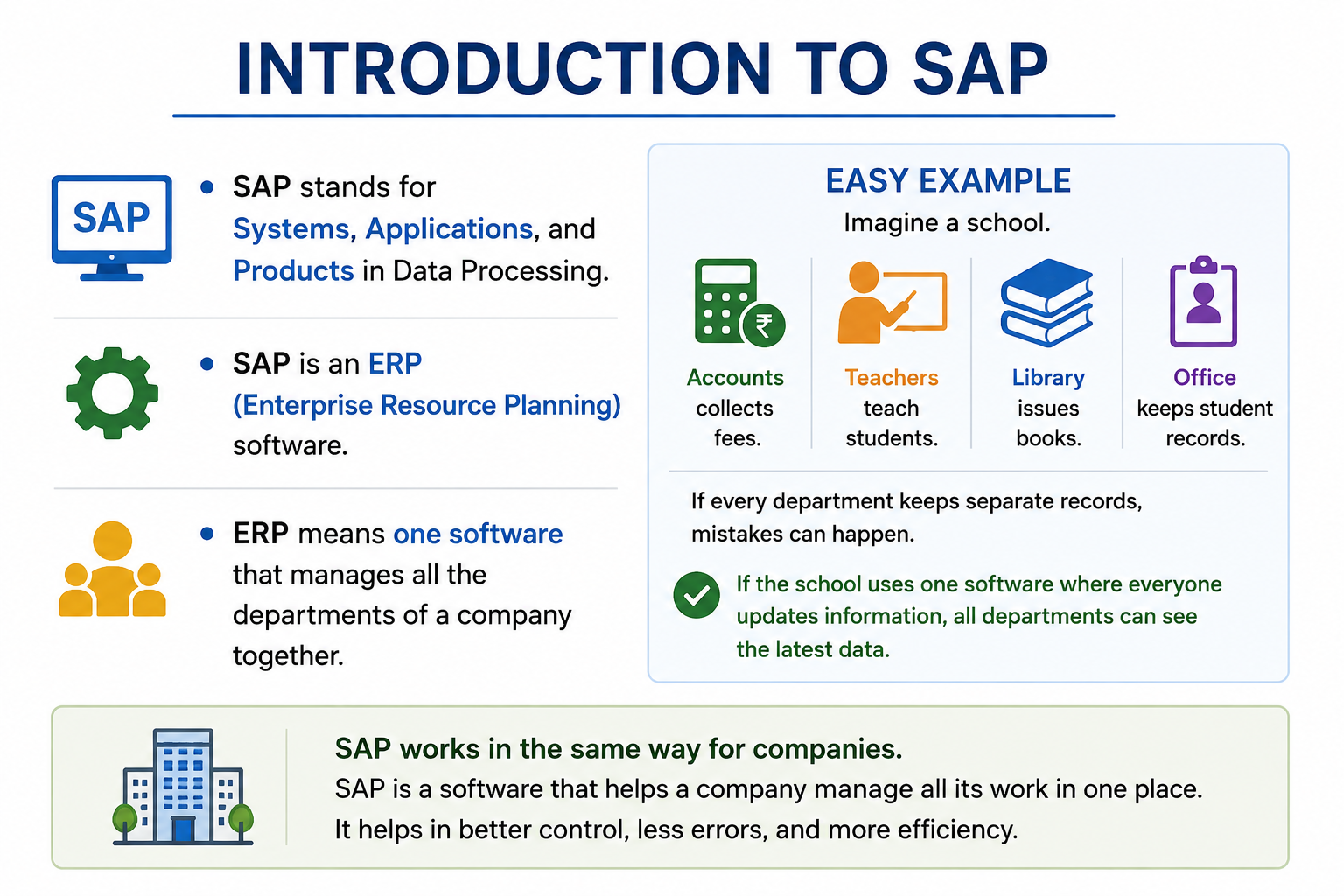
Systems, Applications, and Products in Data Processing — one software that runs every department of a company.

Introduction to SAP
SAP stands for Systems, Applications, and Products in Data Processing. It is an ERP (Enterprise Resource Planning)software — one software that manages all the departments of a company together.
Easy Example
Imagine a school with different departments:
- Accounts collects fees.
- Teachers teach students.
- Library issues books.
- Office keeps student records.
If every department keeps separate records, mistakes can happen.
If the school uses one software where everyone updates information, all departments can see the latest data.
SAP works the same way for companies: better control, fewer errors and more efficiency.
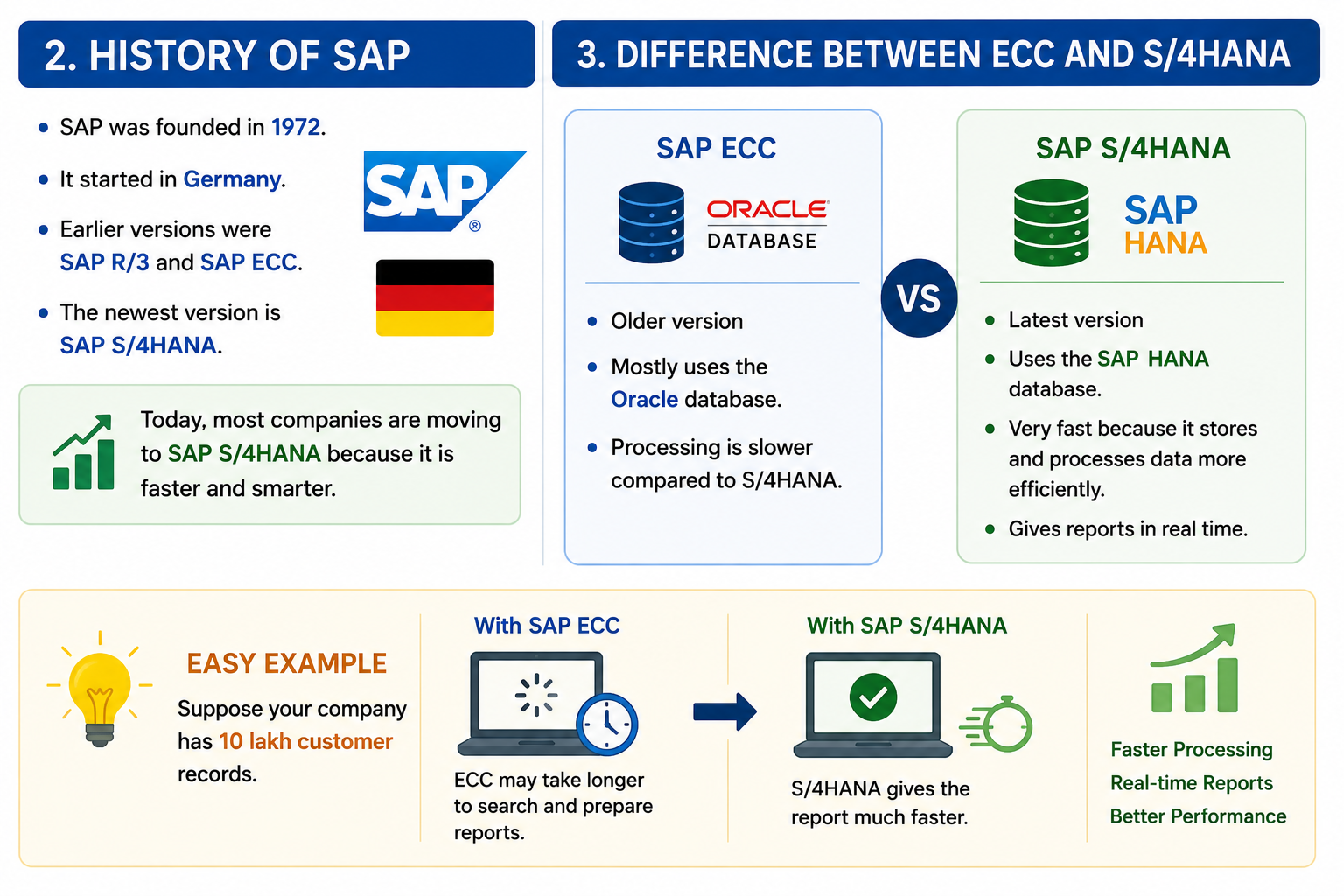
History of SAP + ECC vs S/4HANA
- SAP was founded in 1972.
- It started in Germany.
- Earlier versions were SAP R/3 and SAP ECC.
- The newest version is SAP S/4HANA.
Today most companies are moving to SAP S/4HANA because it is faster and smarter.
SAP ECC
- • Older version
- • Mostly uses the Oracle database
- • Processing is slower compared to S/4HANA
SAP S/4HANA
- • Latest version
- • Uses the SAP HANA database
- • Very fast — stores and processes data efficiently
- • Gives reports in real time
Easy Example
Suppose your company has 10 lakh customer records.
- ECC may take longer to search and prepare reports.
- S/4HANA gives the report much faster.
Understanding SAP Evolution Through the iPhone Journey 📱
📱 Imagine SAP as the iPhone Journey
Suppose you bought an iPhone many years ago. Apple kept improving the phone over time — better technology, better performance, and new features.
SAP followed a similar journey.
SAP R/1 → 📱 First iPhone
- • This was SAP's beginning.
- • It was created mainly to handle financial accounting.
SAP R/2 — The Next Generation
- • Like getting a newer iPhone.
- • SAP R/2 brought an improved version.
SAP R/3 → 📱 Major upgrade
- • Introduced the client-server system.
SAP ECC — The Powerful Generation (2004–2005)
- • ECC became a widely used SAP ERP system.
- • Businesses could manage areas such as Finance, Sales, Purchasing and Human Resources in one system.
SAP S/4HANA — The Modern Generation
- • This is SAP's modern ERP generation.
- • Designed to work with the SAP HANA database.
- • Provides a more modern architecture and user experience.
🧠 Easy to remember: SAP R/1 → R/2 → R/3 → ECC → S/4HANA — each one is the "newer iPhone" of its time.
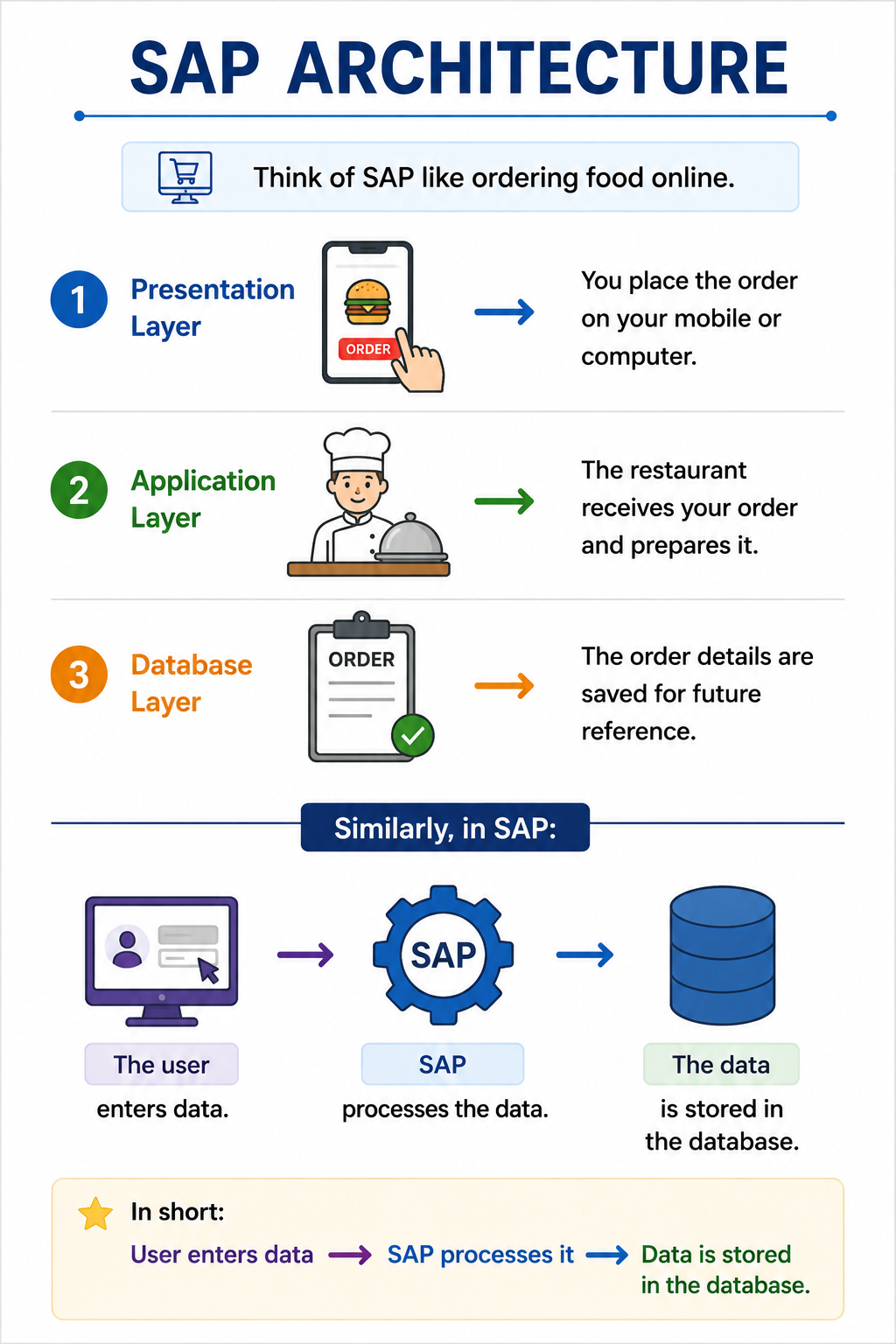
SAP Architecture — The Three Layers
Think of SAP like ordering food online.
- Presentation Layer — you place the order on your mobile or computer. In SAP, this is the screen where employees enter information.
- Application Layer — the restaurant receives your order and prepares it. In SAP, this layer checks and processes the information.
- Database Layer — the order details are saved for future reference. In SAP, customer details, invoices, employee data and reports are stored here.
In short: user enters data → SAP processes it → data is stored in the database.
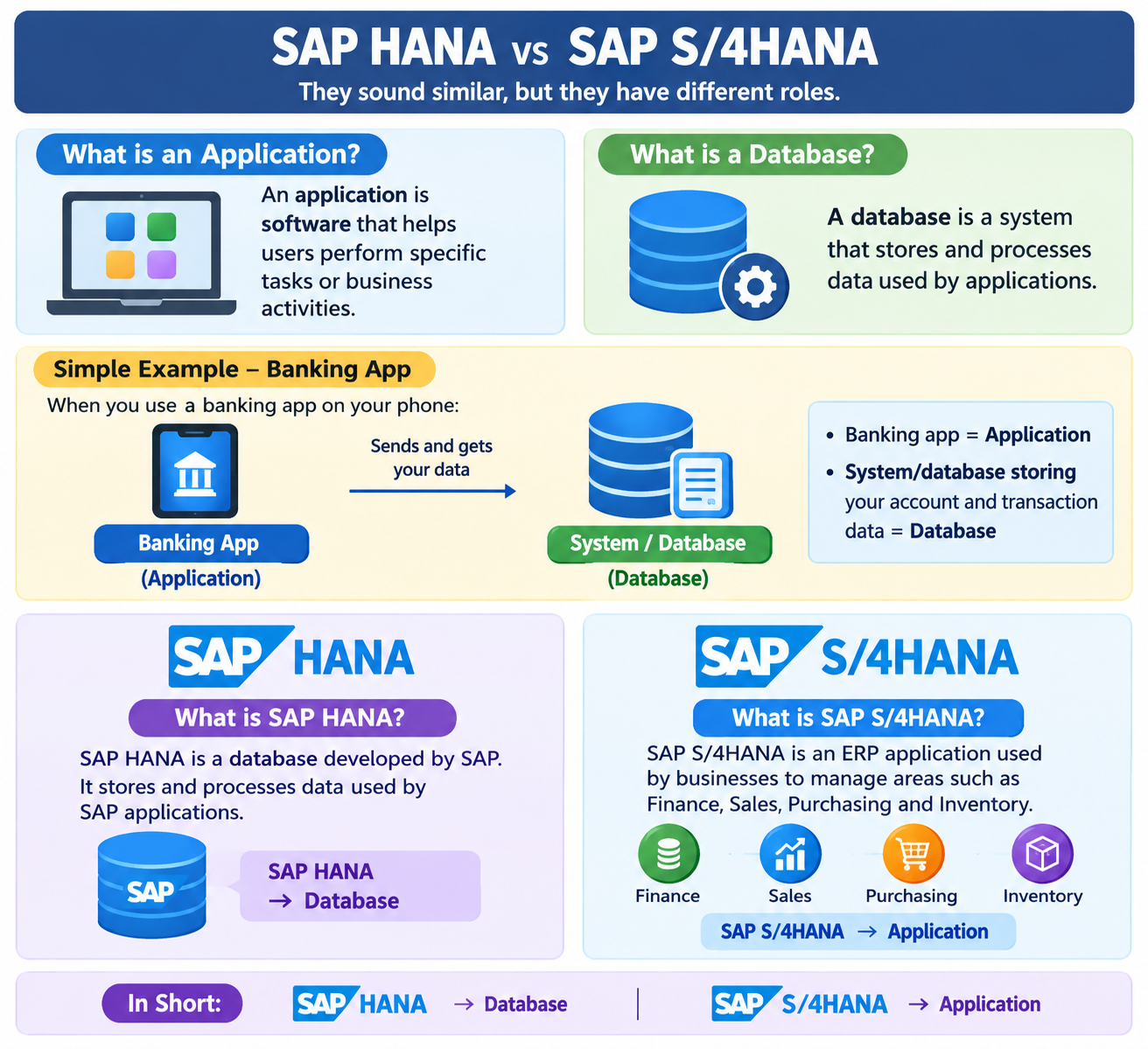
What is SAP HANA and SAP S/4HANA?
SAP HANA and SAP S/4HANA sound similar, but they have different roles.
👉 What is SAP HANA?
SAP HANA is an in-memory database developed by SAP. It stores and processes the data used by SAP applications, and is built for very fast data processing.
👉 What is SAP S/4HANA?
SAP S/4HANA is an ERP application used by businesses to manage areas such as Finance, Sales, Purchasing, and Inventory.
➰ How they connect
SAP S/4HANA is the application — and it runs on the SAP HANA database underneath it. So:
- SAP S/4HANA → Application (what users work with)
- SAP HANA → Database (what powers it behind the scenes)
Easy Example
✅ Note
Older SAP ERP systems (like ECC) could run on other databases such as Oracle or SQL Server. SAP S/4HANA is different — it requires the HANA database to run.
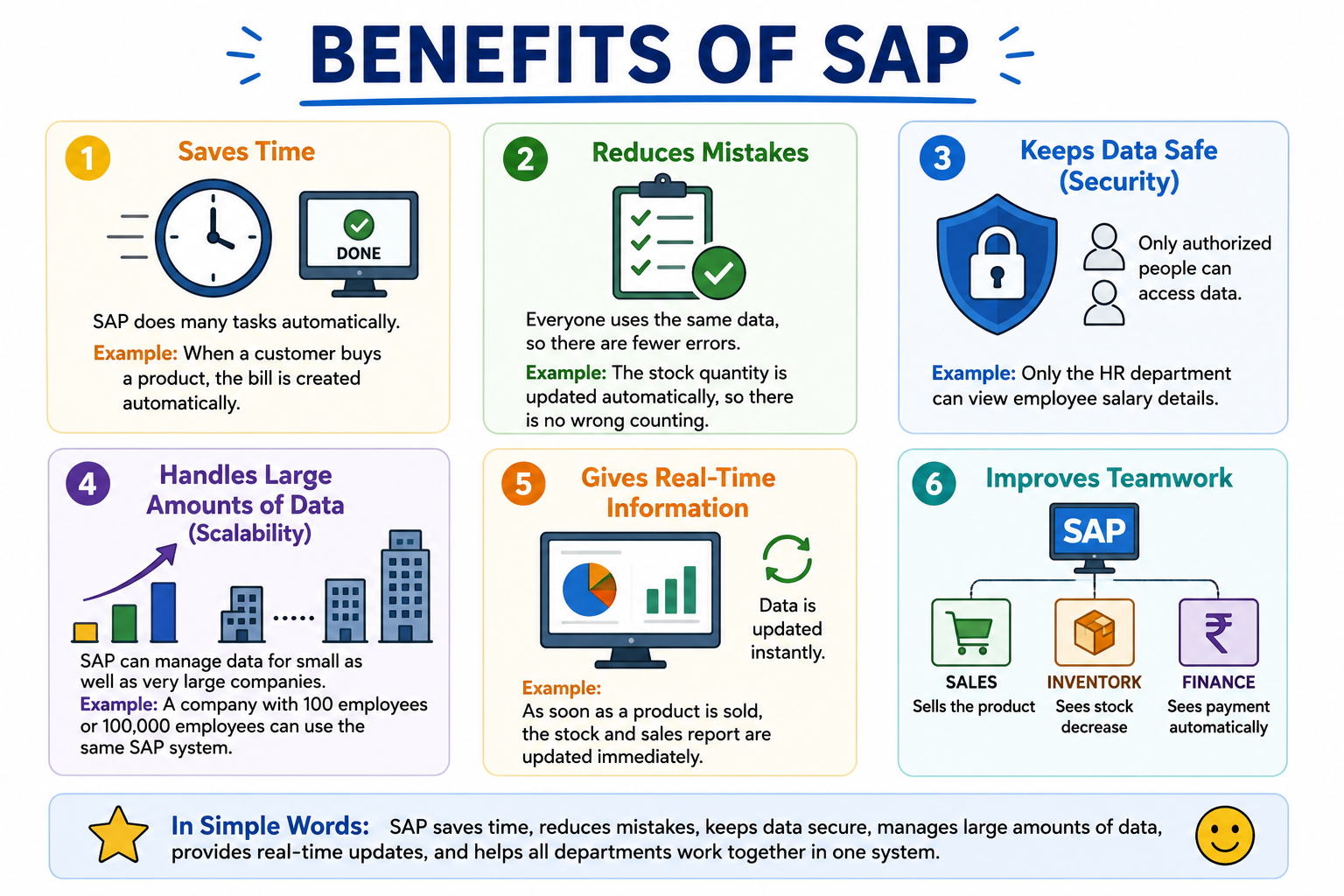
Benefits of SAP
- Saves time — many tasks happen automatically.
- Reduces mistakes — everyone uses the same data.
- Keeps data safe — only authorised people can access it.
- Handles large amounts of data (scalability).
- Gives real-time information.
- Improves teamwork because all departments use one system.
SAP Modules
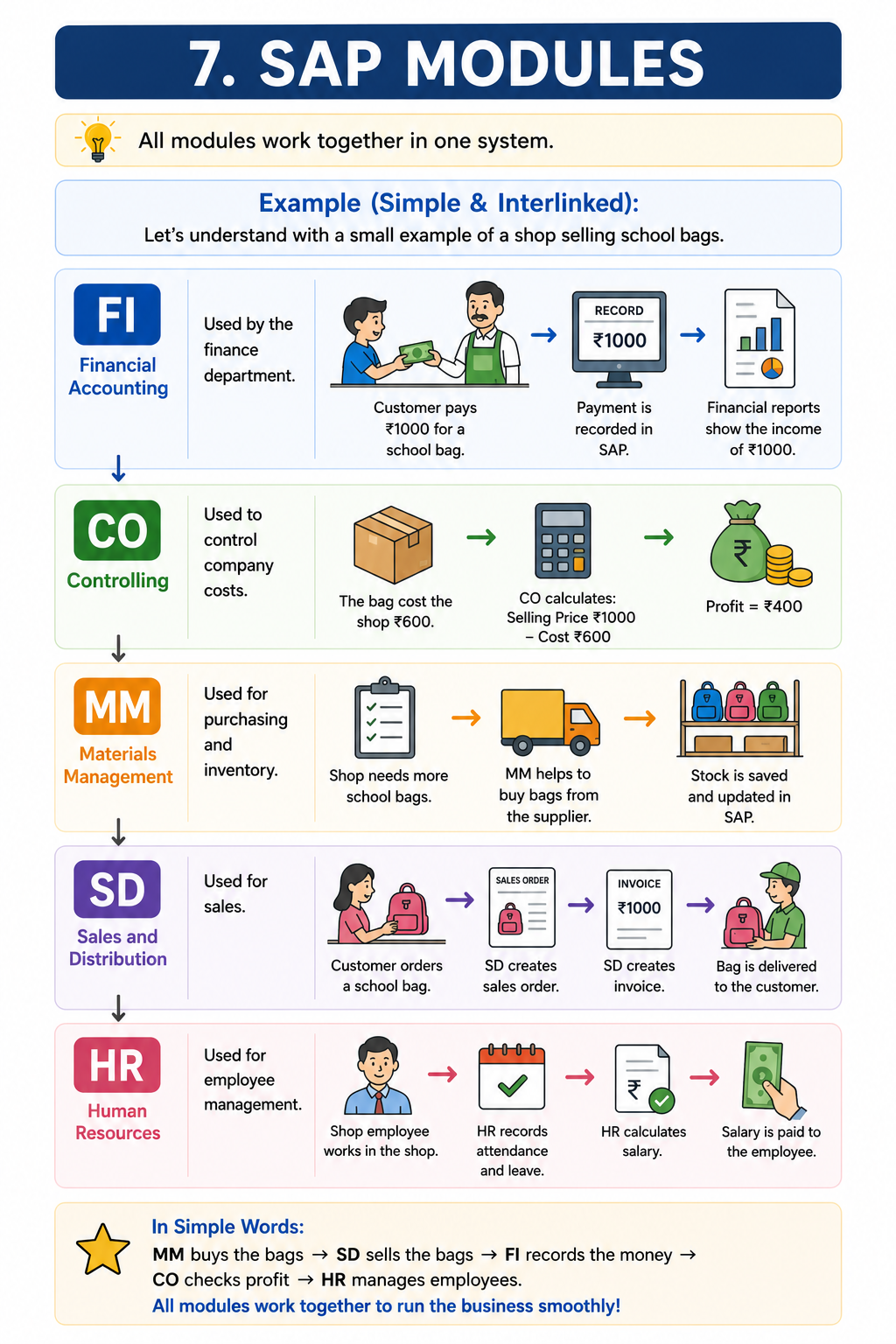
SAP has 40+ modules, but the main ones are:
Financial Accounting
- • Used by the finance department
- • Records customer payments and expenses
- • Prepares financial reports
Controlling
- • Controls company costs
- • Spend ₹10 lakh, earn ₹15 lakh → CO calculates the profit
Materials Management
- • Purchasing and inventory
- • A mobile company buys batteries and screens
- • Tracks stock
Sales and Distribution
- • Used for sales
- • A customer orders a laptop
- • Creates sales order, invoice and delivery
Human Resources
- • Employee management
- • Salary, attendance, leave and payroll
Technical Modules & Integration
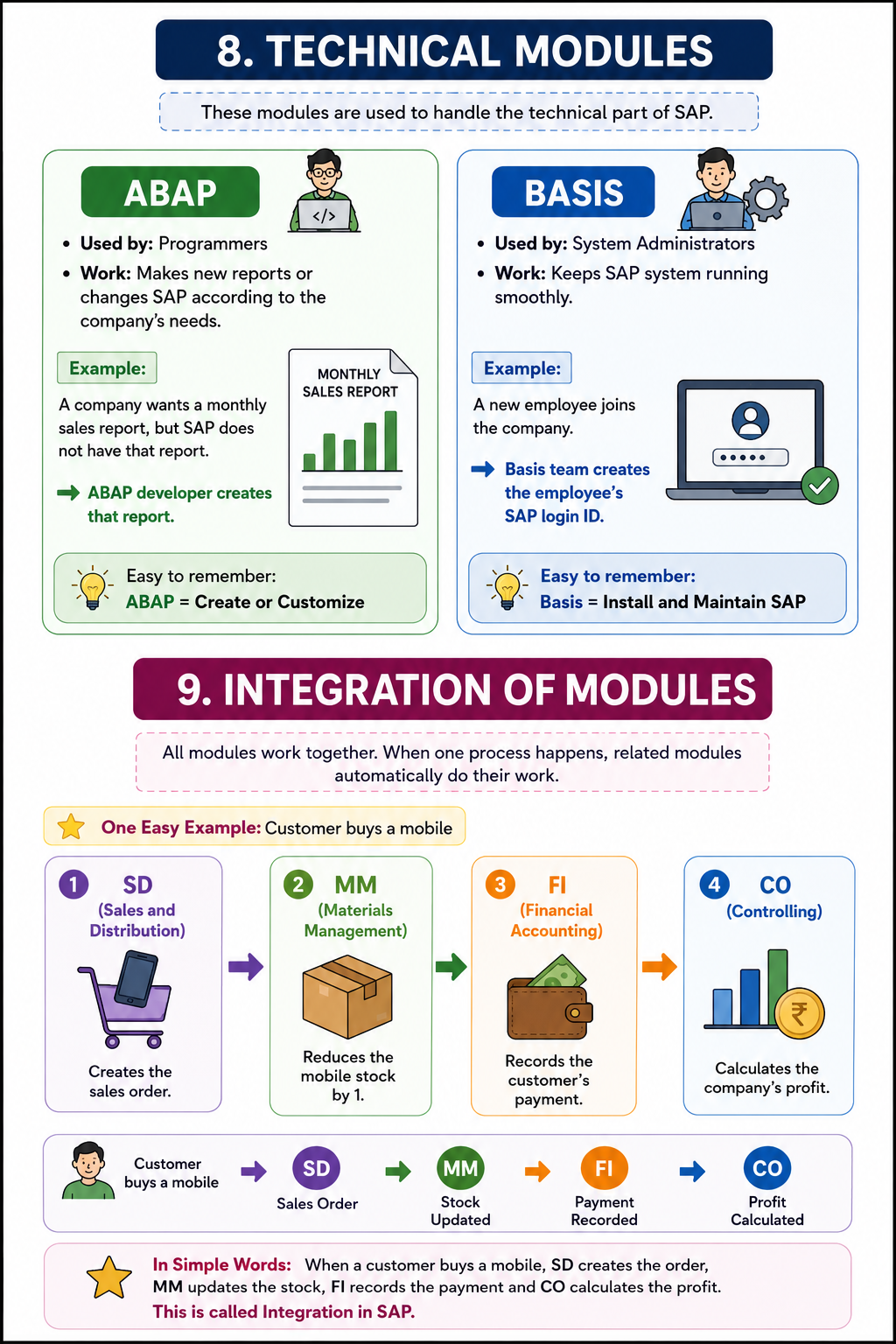
Technical modules are used by the technical team to keep SAP working properly.
- ABAP (Programmer) — creates new reports or changes SAP to the company's needs. A company wants a Daily Sales Report that SAP doesn't have → the ABAP developer creates it. ABAP = Create or Customize.
- Basis — installs and maintains SAP so the system keeps running smoothly. Basis = Install and Maintain SAP.
Integration of modules means all SAP modules work together automatically to complete one business process.
Where is SAP Used?
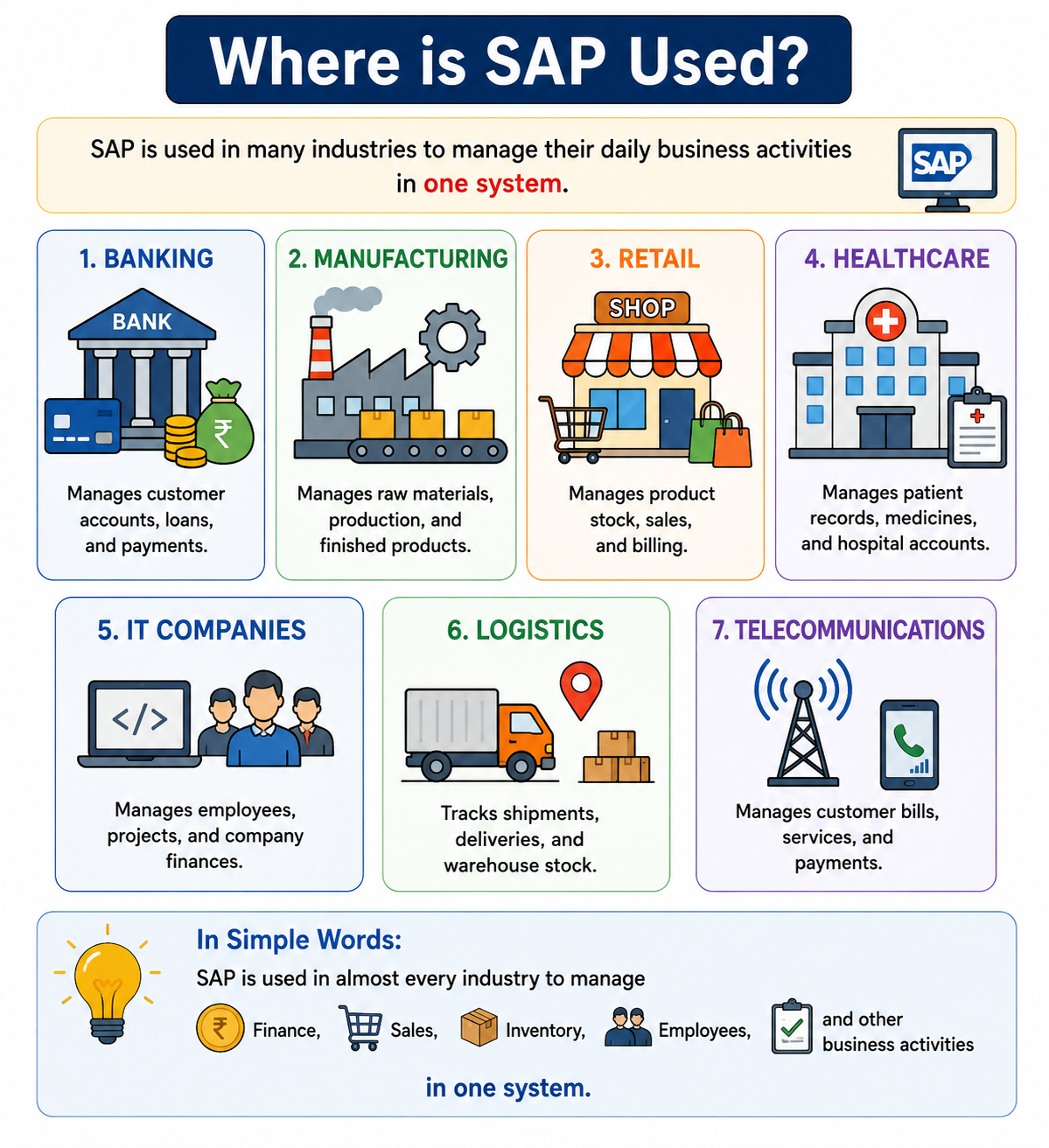
SAP is used in almost every industry to manage finance, sales, inventory, employees and other business activities in one system.
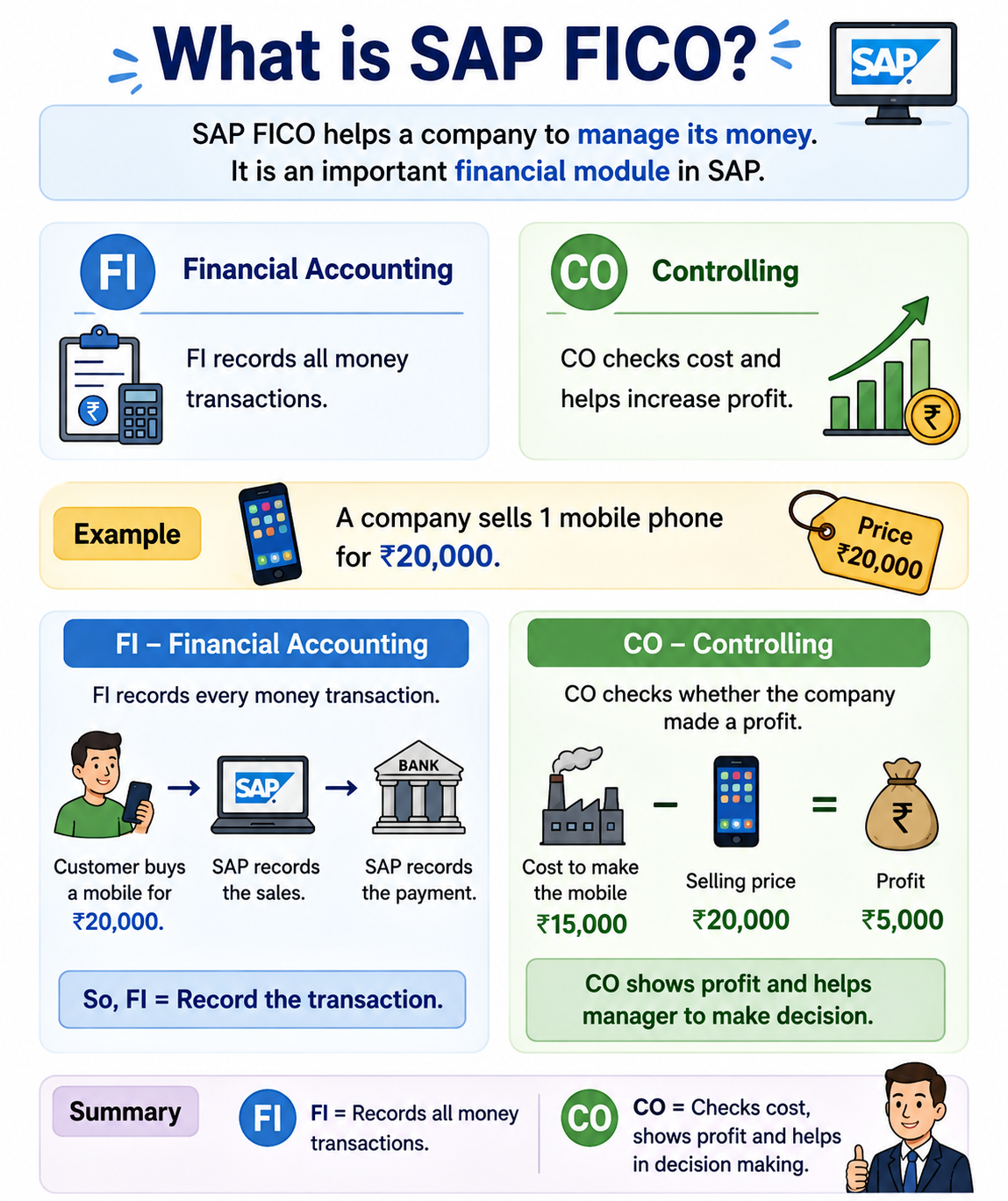
What is SAP FICO?
SAP FICO is used to manage a company's money. It is one of the most important SAP modules.
Financial Accounting
- • Records all money transactions
- • Records money coming in and going out
- • Makes reports for bank, government and owners
Controlling
- • Checks costs and helps increase profit
- • Shows whether the company made a profit
- • Helps managers make decisions
Easy Example
A company sells 1 mobile phone for ₹20,000.
- FI: customer buys a mobile for ₹20,000 → SAP records the sale and the payment. FI = Records the transaction.
- CO: cost to make = ₹15,000, selling price = ₹20,000 → Profit = ₹5,000. CO = Shows profit.
Role of SAP FICO
Using the same mobile phone example:
- 1Customer buys a mobile.
- 2SAP creates the invoice.
- 3Customer pays ₹20,000.
- 4SAP records the payment.
- 5SAP shows the company earned ₹5,000 profit.
SAP FI Overview — AP, AR & AA
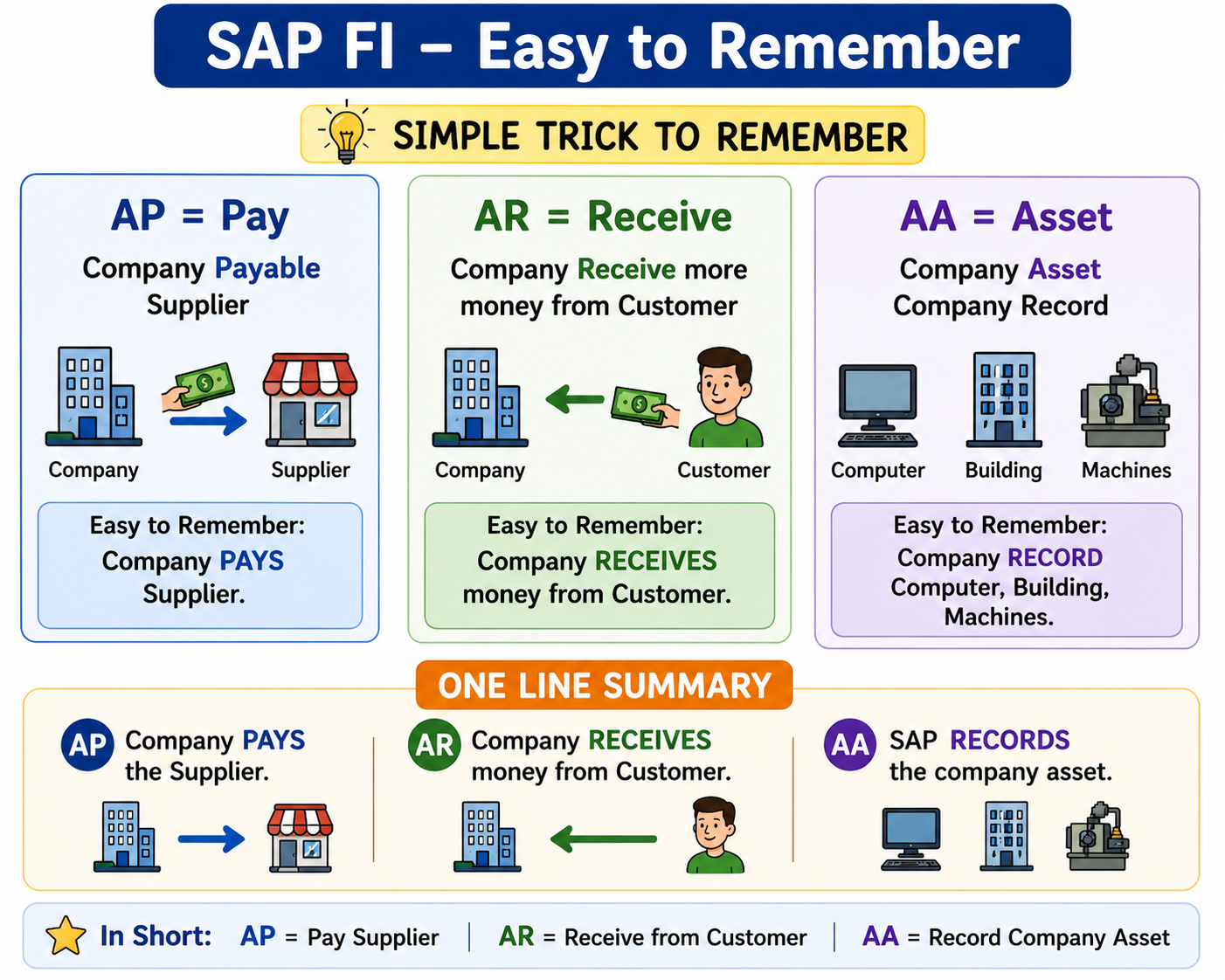
SAP FI helps a company record all money-related activities. It has 3 important parts:
Accounts Payable
- • Money the company has to pay
- • Company buys a mobile from a supplier
- • Company pays Supplier = AP
Accounts Receivable
- • Money the company will receive
- • Company sells a mobile to a customer
- • Customer pays Company = AR
Asset Accounting
- • Records all company assets
- • Computer, chair, building, machine
- • Company property = AA
In short: AP = Pay supplier · AR = Receive from customer · AA = Record company assets.
SAP CO Overview
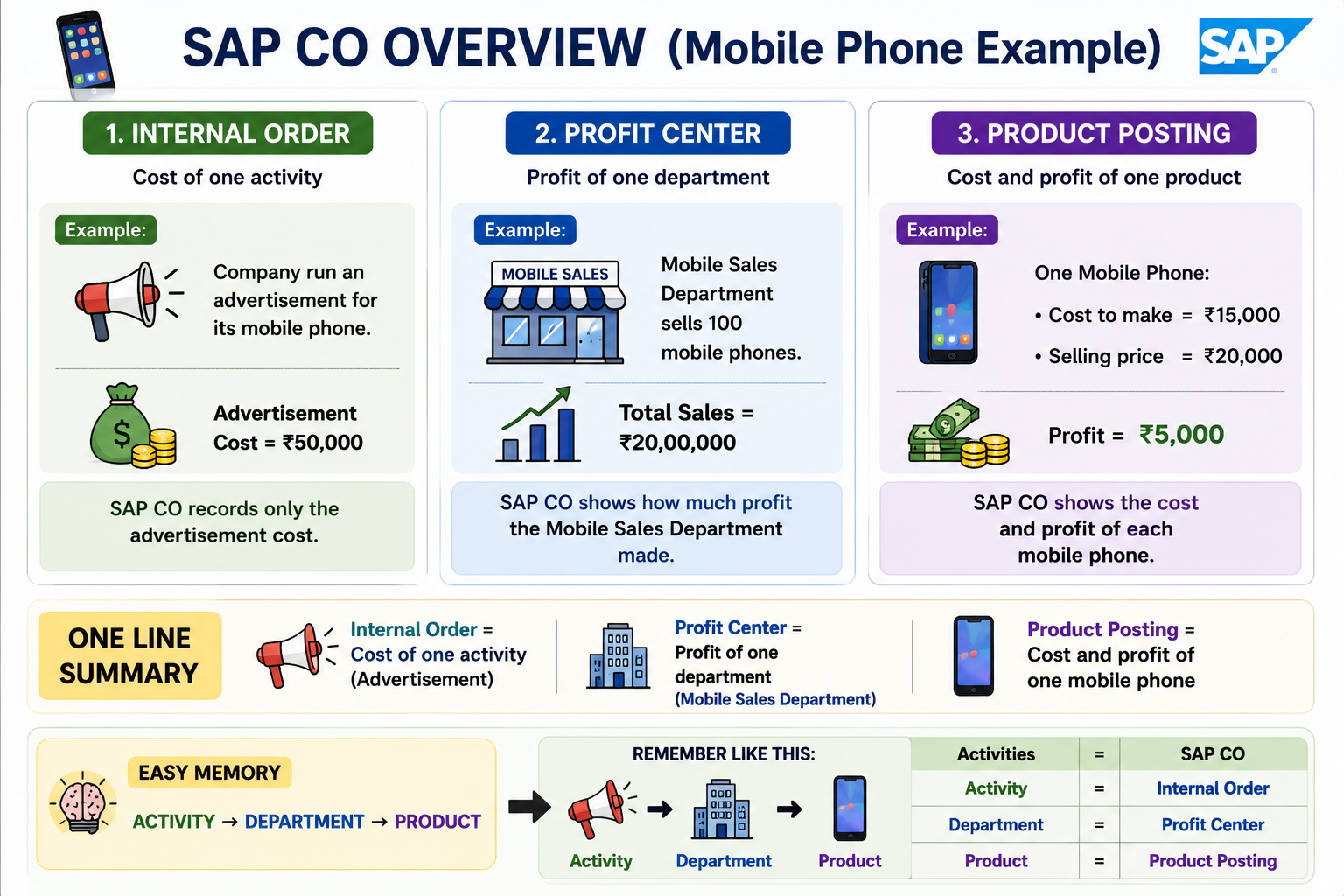
SAP CO (Controlling) helps the company control costs and increase profit. It has 3 main parts:
Internal Order
- • Cost of one specific activity
- • Advertisement cost = ₹50,000
- • One Activity = Internal Order
Profit Center
- • Checks which department is making profit
- • Mobile Sales Dept. sells 100 phones = ₹20,00,000
- • One Department = Profit Center
Product Costing
- • Cost and profit of one product
- • Cost ₹15,000, sells ₹20,000 → profit ₹5,000
- • One Product = Product Costing
SAP FICO in Real Business Flow — P2P
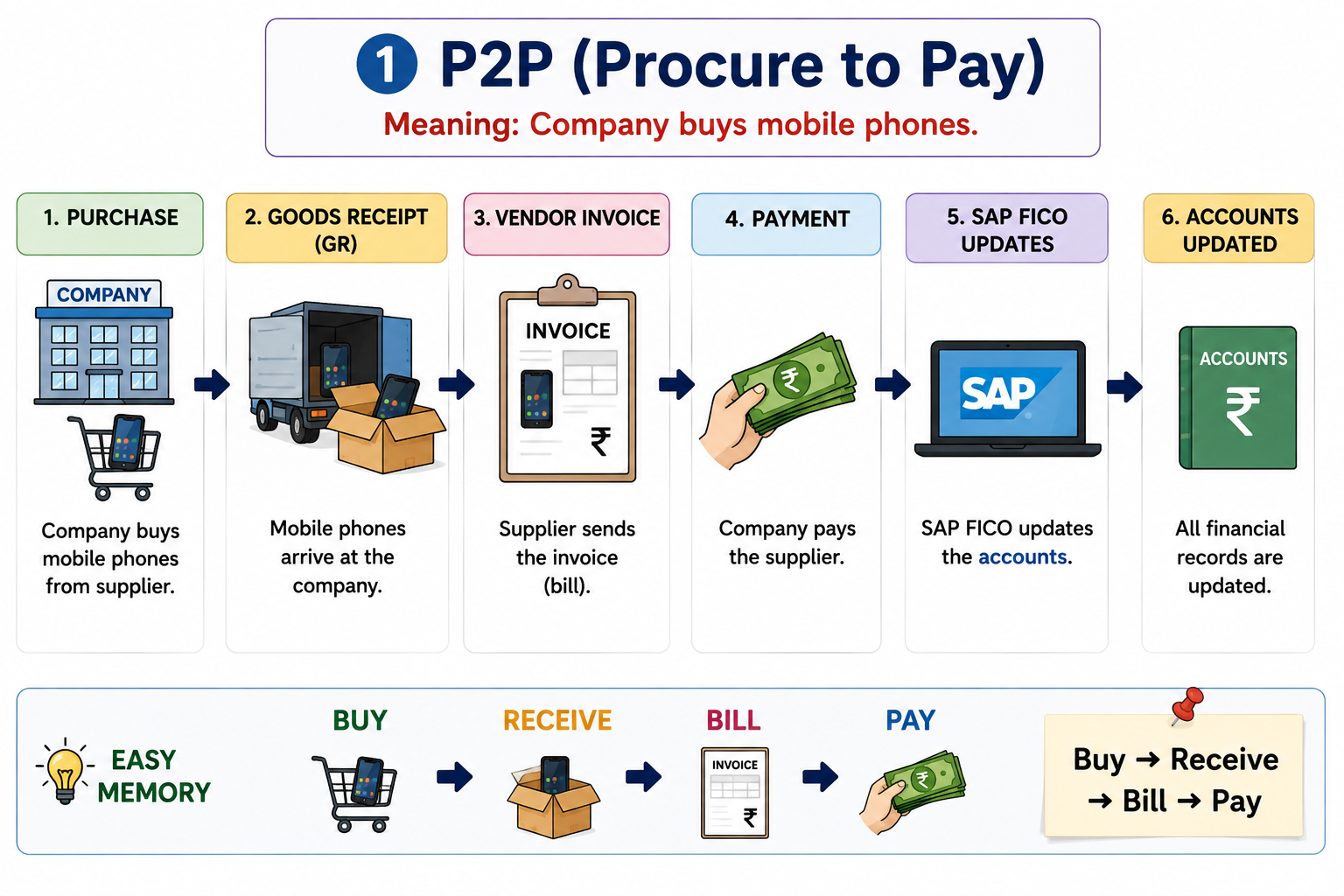
P2P (Procure to Pay) means the company buys mobile phones and then pays for them.
- 1Company purchases mobile phones from the supplier.
- 2Goods Receipt (GR) — mobile phones arrive.
- 3Vendor Invoice — supplier sends the bill.
- 4Payment — company pays the supplier.
- 5SAP FICO updates the accounts.
Easy Example
Buy ➜ Receive ➜ Bill ➜ Pay
O2C (Order to Cash)
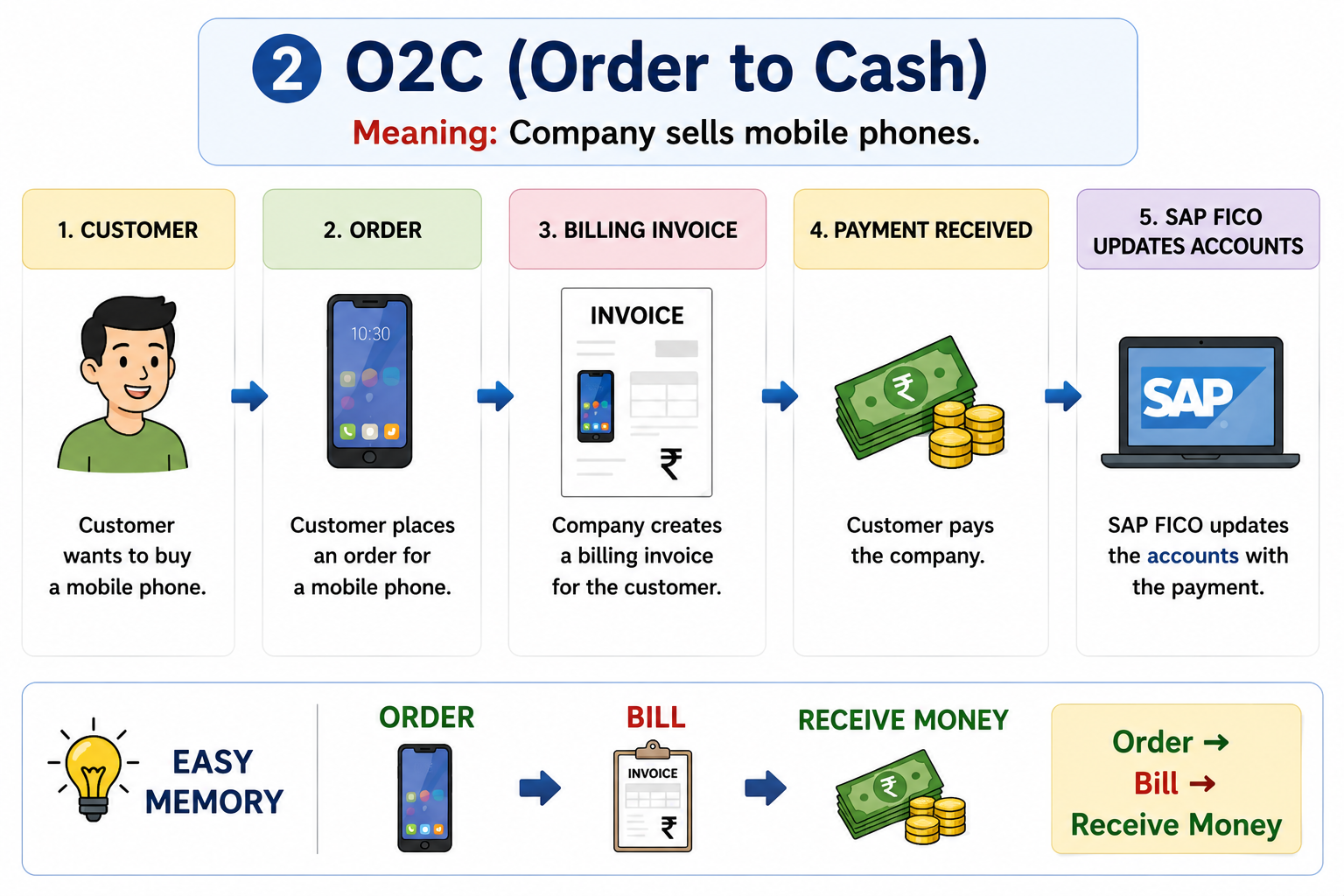
O2C (Order to Cash) means the company sells mobile phones.
- 1Customer wants to buy a mobile phone.
- 2Customer places the order.
- 3Company creates the billing invoice.
- 4Customer pays the company.
- 5SAP FICO updates the accounts.
Easy Example
Order ➜ Bill ➜ Receive Money
One-Line Summary
- P2P = Buy mobile ➜ Receive ➜ Bill ➜ Pay supplier.
- O2C = Sell mobile ➜ Bill customer ➜ Receive money.
- Ledger = Records every payment and receipt.
- SAP FICO = Automatically updates all financial records.
Why is Cloud Important in SAP?
Cloud means using computers, storage, and software through the internet instead of keeping everything on your own computer or physical servers. For example, instead of a company buying and maintaining its own SAP servers, it can use SAP in the cloud.
- 1Access from anywhere 🌐 – Employees can use SAP through the internet.
- 2Lower infrastructure cost 💰 – Companies need fewer physical servers.
- 3Easy updates 🔄 – Cloud SAP can receive regular updates and improvements.
- 4Scalability 📈 – SAP resources can increase as the company grows.
- 5Better collaboration 🤝 – Different teams can work with the same data.
- 6Security and backup 🔐 – Cloud platforms provide security, monitoring, and backup options.
Easy Example
Simple example
Traditional SAP:
Company → Own servers → SAP system
Cloud SAP:
Company → Internet → Cloud → SAP system
Why Does SAP Use Client Numbers like 100, 200 and 400?
An SAP Client is a separate environment within an SAP system where data and business activities can be managed separately.
Development Server
- • You experiment and configure things here
Testing
- • You test whether the configuration works correctly
Quality Assurance
- • Here changes and processes can be tested before they are moved to the Production system
Production
- • Real business transactions are processed here
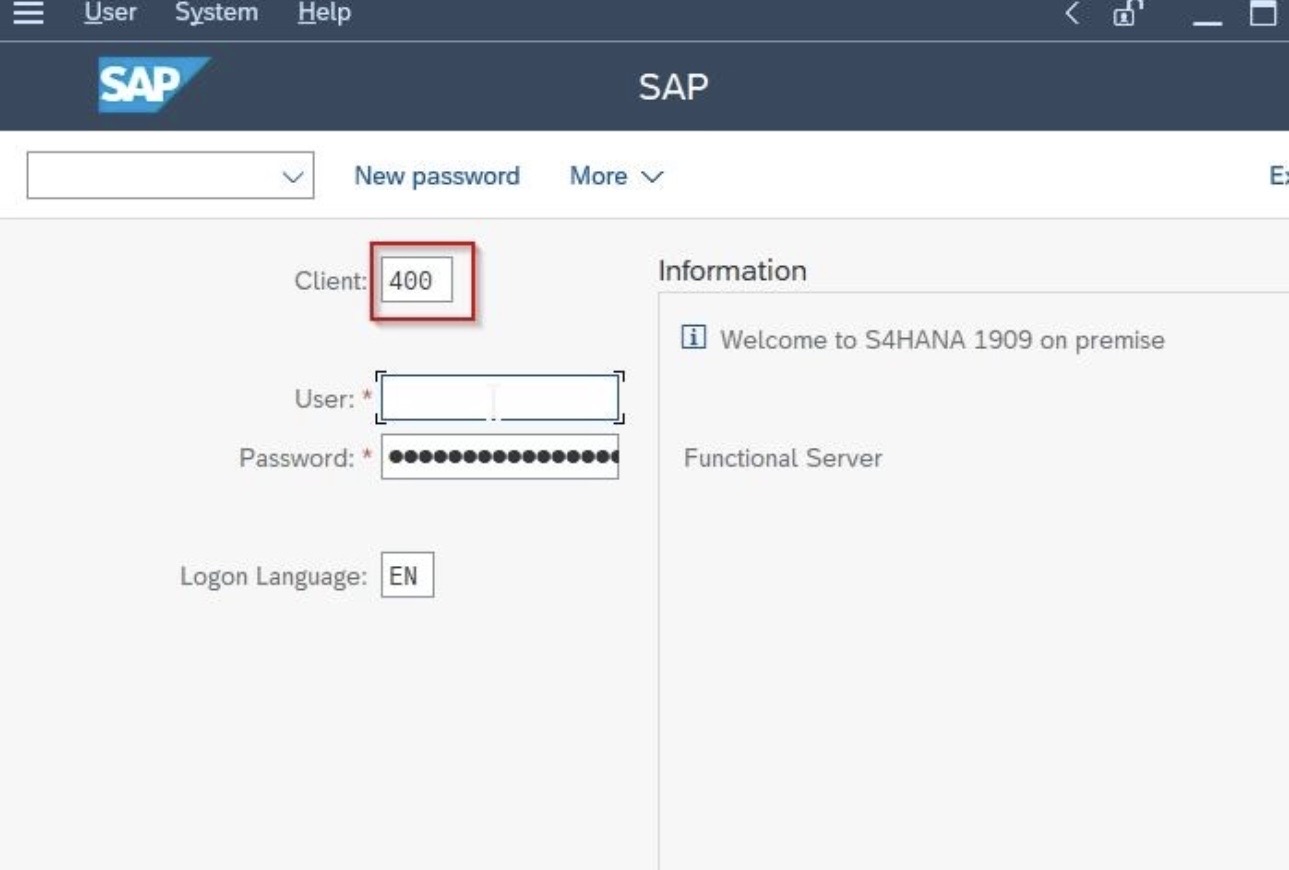
These numbers define which client you are working with. Each client has its own database. If the client is 100, you are working in the development system, and you do not have access to the quality or production systems.
When you log in to SAP GUI, you normally see a Client field on the SAP Logon screen before entering your username and password.
What is a T-Code in SAP?
T-Code stands for Transaction Code. It is a short code that takes you straight to a specific task or screen in SAP.
SAP has many tasks, such as creating a G/L account, posting a journal entry, or checking customer information. Each task has its own T-Code, so you don't need to browse through menus to find it.
Easy Example
Simple example
Think of opening WhatsApp on your phone. Instead of searching for it every time, you tap its icon. T-Codes work the same way.
To post a financial entry, type FB50 in the command field and press Enter. SAP opens the Enter G/L Account Document screen directly.
✅ Other common T-Codes
- FS00: G/L account master data
- FB60: Enter vendor invoice
- FD03: Display customer
✅ In simple words: a T-Code is like the icon of an app on your phone — type it once, press Enter, and SAP takes you directly to the screen for that task.
SAP /n vs /o Commands: Difference Explained
If you work in SAP, you use the command field every day. Two of the most useful shortcuts there are /n and /o. They look similar, but they behave differently.
🧭 What is /n in SAP?
/n is a command you type in the SAP command field to leave the current transaction and open another one in the same window.
Easy Example
Simple example
You're in FB50 (Enter G/L Account Document) and want FS00 (G/L Account Master Record Maintenance). Type /nFS00 and press Enter. SAP takes you straight there, no menu navigation needed.
✅ Good to know
- Typing /n alone returns you to the SAP Easy Access menu.
- /n does not save your work, so save before using it.
🪟 What is /o in SAP?
/o opens a transaction in a new session, while your current screen stays open. For example, /oFS00 opens FS00 in a new window and keeps FB50 untouched.
⚖️ Difference Between /n and /o in SAP
| Command | Meaning | What happens? |
|---|---|---|
| /n | Open a transaction in the same session | The current transaction closes and the new one opens |
| /o | Open a transaction in a new session | The current transaction stays open and a new session opens with the new one |
🧠 Quick memory tip: /n = same window, /o = new window.
🎯 When Should You Use Each?
- Use /n when you're finished with the current task and want to move on.
- Use /o when you need to check something without losing your current work, such as looking up an account while posting a document.
FAQ (Frequently Asked Questions)
What does /n do in SAP?
It closes the current transaction and opens another in the same session.
What does /o do in SAP?
It opens a transaction in a new session and keeps the current one open.
Does /n save my data?
No. Unsaved changes may be lost, so save first.
How many sessions can I open with /o?
Usually up to 6 by default, though your SAP administrator can change this limit.
SAP Activate: Understanding the 6 Phases of SAP Implementation
🚀 What are the 6 phases of SAP Activate?
When a business implements SAP, it doesn't happen overnight — it follows a structured methodology called SAP Activate. Think of it like building and moving into a new house: you don't just show up one day and start living there. There are clear steps to follow.
🔍 Discover
- • This is the exploring stage. The business looks at what SAP (especially S/4HANA) can offer and decides if it's the right fit.
- • Like visiting a house before deciding to buy it.
📋 Prepare
- • Once the decision is made, the team plans everything: project goals, timeline, budget, and who's responsible for what.
- • Just like planning a move before the work begins.
🧩 Explore
- • The team compares the standard SAP system to what the business actually needs. Any gaps between the two are identified here.
- • Similar to walking through a house design and noting what needs to be customized.
🛠️ Realize
- • This is where the real work happens. The system is built, configured, and tested to make sure everything works correctly before going live.
- • Like the actual construction and fitting-out of the house.
🚦 Deploy
- • This is go-live day. The final checks are done, and the new SAP system officially becomes available for everyone to use.
- • Just like moving into your new home.
⚙️ Run
- • Once live, the system needs ongoing support. Any issues are fixed, and the team hands over daily operations to the support staff.
- • Like settling into your new home and calling for repairs when needed.
What is a Company Code in SAP?
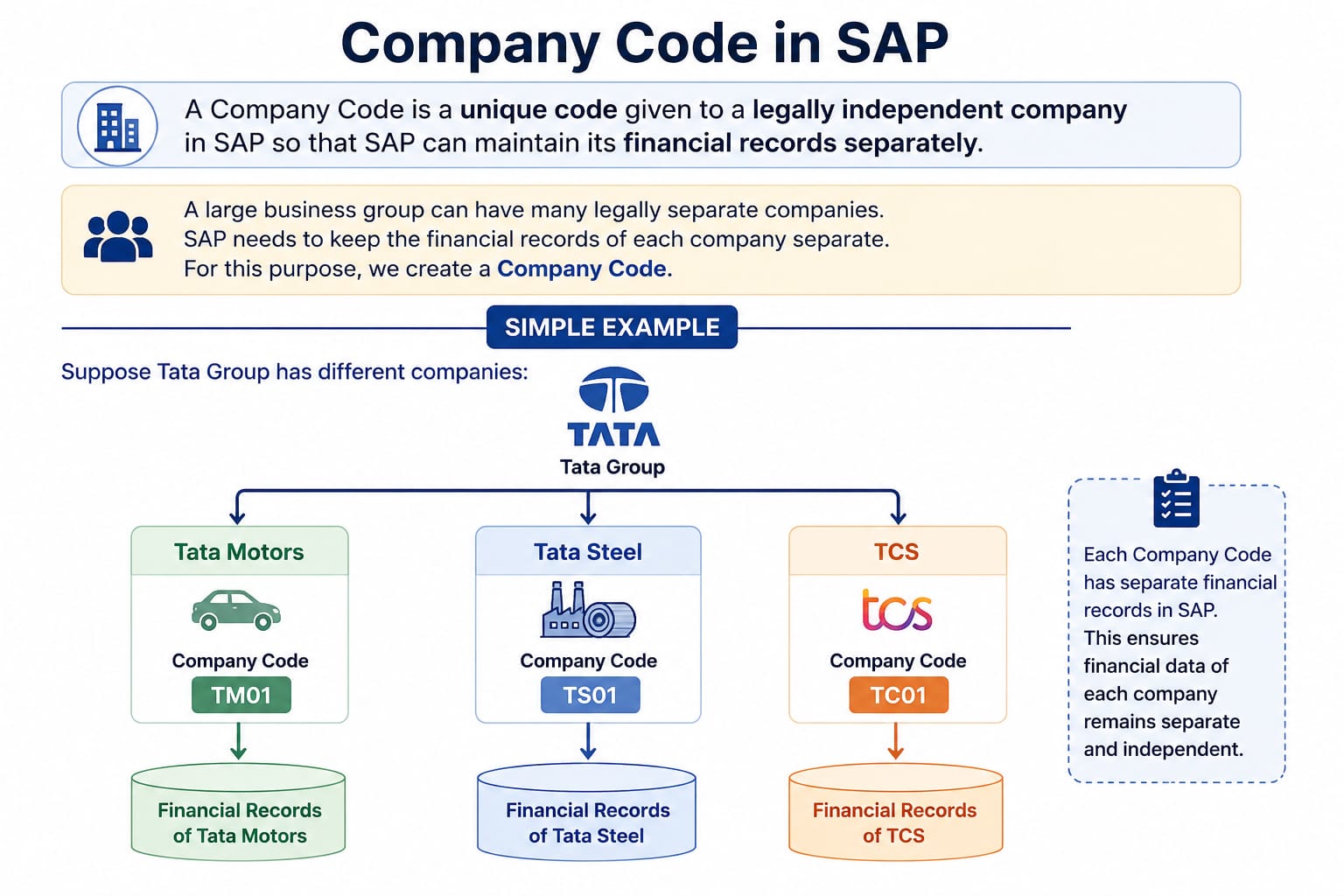
A Company Code is a unique code assigned to a legally independent company in SAP, used to maintain that company's financial records separately from others in the same group.
A large business group often has several legally separate companies under it. SAP needs to keep each one's books separate — that's what the Company Code is for.
👉 Why is Company Code important?
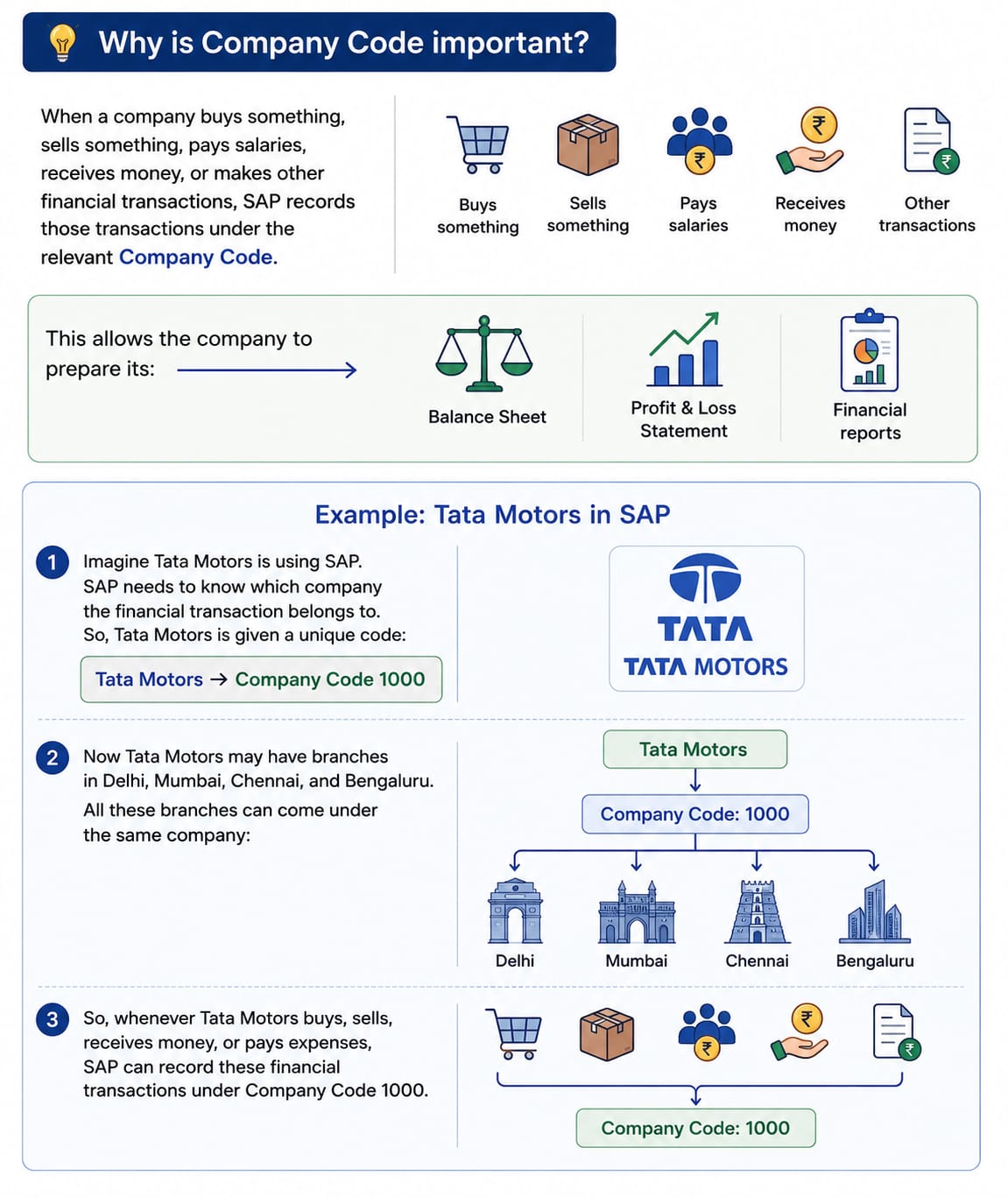
When a company buys something, sells something, pays salaries, receives money, or makes other financial transactions, SAP records those transactions under the relevant Company Code. This allows the company to prepare its own:
- Balance Sheet
- Profit & Loss Statement
- Financial reports
❇️ Example: Tata Motors in SAP
Imagine Tata Motors is using SAP. SAP needs to know which company the financial transaction belongs to. So, Tata Motors is given a unique code:
Easy Example
Tata Motors → Company Code 1000
Now, Tata Motors may have branches in Delhi, Mumbai, Chennai, and Bengaluru. All these branches can come under the same company:
Tata Motors
⬇️
Company Code: 1000
⬇️
Delhi | Mumbai | Chennai | Bengaluru
So, whenever Tata Motors buys, sells, receives money, or pays expenses, SAP can record these financial transactions under Company Code 1000.
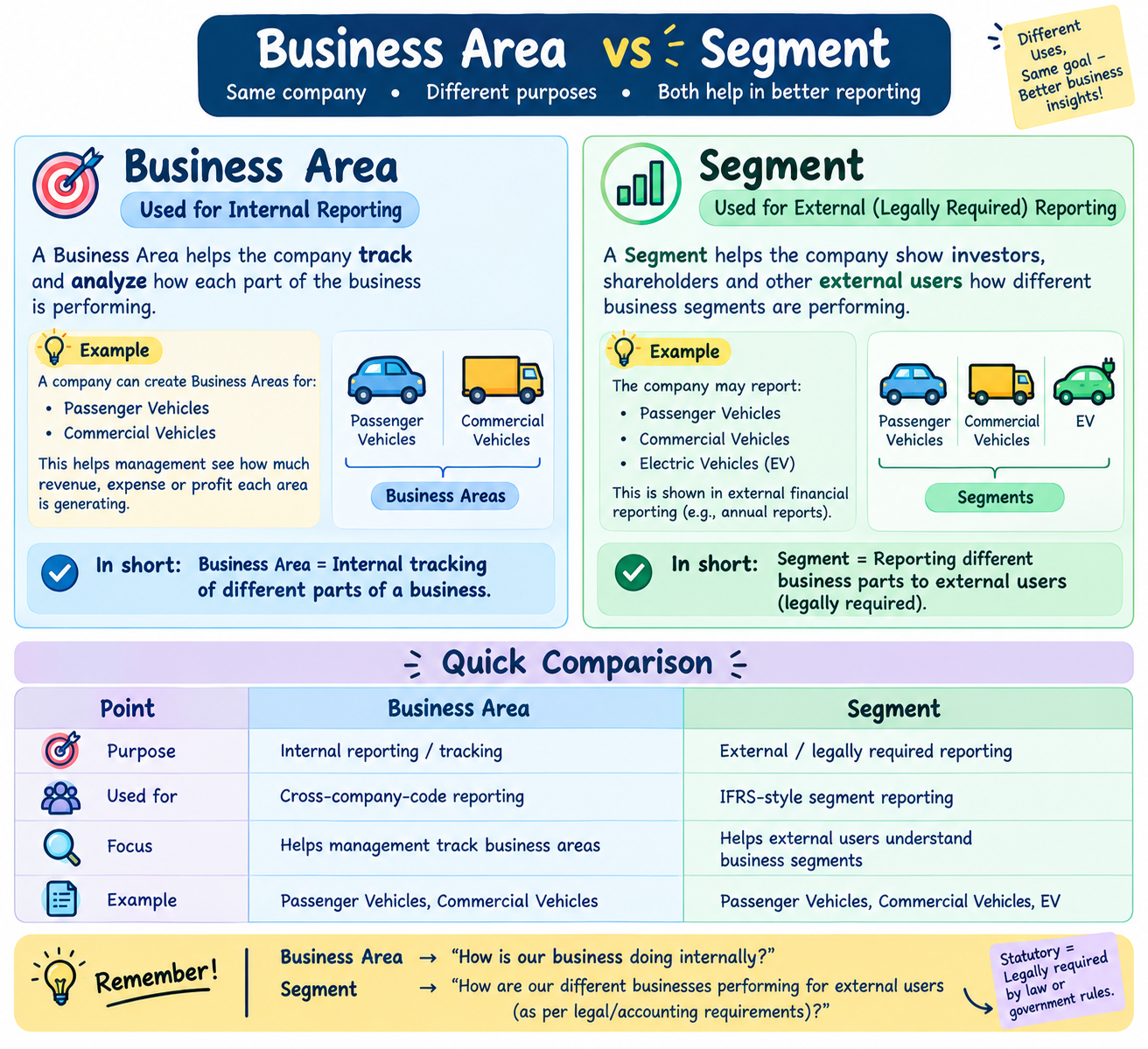
What is a Business Area and a Segment in SAP?
👉 What is a Business Area?
A Business Area is a part of a company for which financial information is tracked separately.
🔺 Example: Tata Motors
Suppose Tata Motors has two major business areas:
- 🚗 Passenger Vehicles
- 🚛 Commercial Vehicles
Tata Motors wants to know how much money each business area earns and spends. In SAP, financial information can be tracked separately for each business area — so if Passenger Vehicles generates ₹500 crore in revenue and Commercial Vehicles generates ₹300 crore, SAP lets the company see these figures independently rather than as one combined number.
👉 What is a Segment in a business?
A Segment is just a way to divide one company's business into smaller parts, so each part's performance can be tracked separately.
🔺 Example: Tata Motors
Tata Motors is one company, but it makes Passenger Vehicles, Commercial Vehicles, and Electric Vehicles. Each of these is treated as a separate segment, so the company can see how each one is doing on its own.
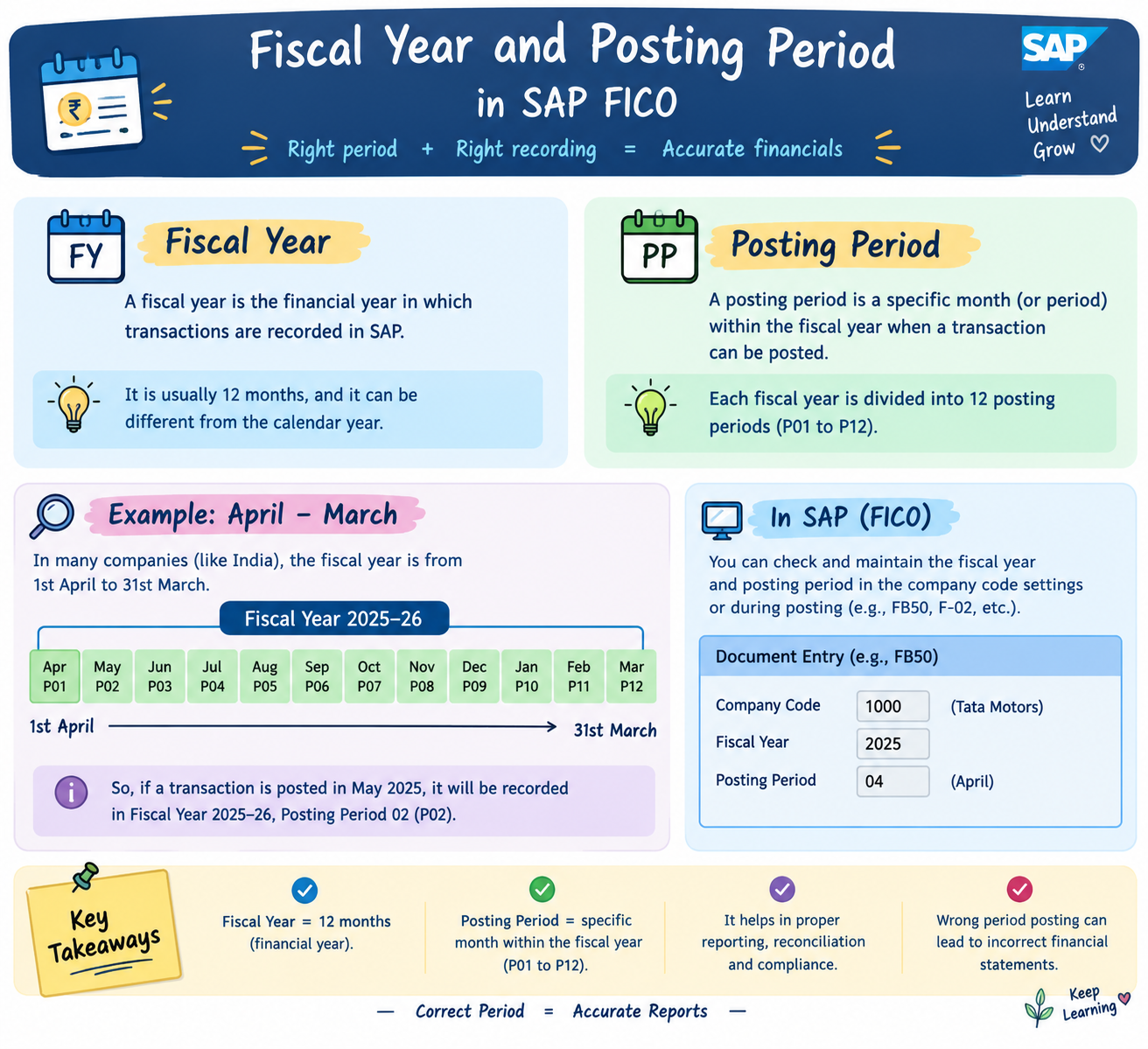
What is a Fiscal Year and a Posting Period in SAP?
👉 What is a Fiscal Year?
A Fiscal Year is a 12-month period a company uses to manage its accounts and financial transactions.
🔺 Example in SAP
- Fiscal Year: April 2026 to March 2027
- Posting Period: September 2026
So, September is one period inside the fiscal year.
Easy Example
👉 Easy to remember
Fiscal Year = Whole year
Posting Period = A particular month within that year
👉 What is a Posting Period in SAP?
A posting period is a defined period, usually a month, during which SAP allows financial transactions to be posted. Once the period is closed, new postings are normally not allowed for that period.
🔺 Think of a monthly accounting register
- January → Open ✅
- February → Open ✅
- March → Closed ❌
If March is closed, you cannot normally add a new March transaction.
Easy Example
👉 Easy to remember
Open period = You can post.
Closed period = You cannot normally post.
How Document Header & Line Items Work in SAP?
What is a Document Header?
A Document Header is the basic information at the top of an accounting document. It tells you what the document is, when it was created/posted, and which company it belongs to — but not the actual debit/credit amounts.
💡 Simple Example
Suppose a company records a ₹10,000 office expense. The document header may contain:
- 📅 Document Date: 24 September 2026
- 📅 Posting Date: 24 September 2026
- 🏢 Company Code: 1000
- 📆 Fiscal Year: 2026
- 💰 Currency: INR
- 📄 Document Type: SA
- 📝 Reference: e.g., invoice number or note
- 🔢 Document Number: 1900001234
What is a Line Item?
A Line Item is a single entry in an accounting document that shows the actual financial details of the transaction — which account is debited or credited, and how much.
💡 Simple Example
A company pays ₹10,000 for office rent:
- Office Rent → Debit ₹10,000
- Bank → Credit ₹10,000
🔺 These are two line items.
🆚 How They Fit Together
- Document Header — one per document, describes the document as a whole (when, where, what type).
- Line Items — can be many per document, each one is a single debit or credit row.
Every accounting document in SAP has exactly one header, sitting on top of two or more line items.
🧠 Remember It Easily
- Document Header = Basic information about the document (one per document)
- Line Item = One row of the actual debit/credit entry (many per document)
What Is a Posting Key in SAP?
A Posting Key is a 2-digit code in SAP that tells the system two things:
- Whether the amount goes on the Debit or Credit side
- What type of account is being posted to (G/L, customer, vendor, or asset)
💡 Example
💡 Simple Example
ABC Ltd. buys office supplies for $5,000 and pays from its bank account. SAP records two entries:
| Account | Amount | Side | Posting Key |
|---|---|---|---|
| Office Supplies Expense | $5,000 | Debit | 40 |
| Bank Account | $5,000 | Credit | 50 |
✅ Common Posting Keys
| Key | Meaning |
|---|---|
| 40 | Debit, G/L account |
| 50 | Credit, G/L account |
| 01 | Customer invoice (debit) |
| 31 | Vendor invoice (credit) |
| 70 | Debit, asset |
🧠 Easy to Remember
40 = Debit, 50 = Credit for G/L accounts
What Is a Text Field in an SAP Document? (With Example)
A text field in an SAP document is a place where you can write a short note or description about a transaction. It explains why the entry was posted, so anyone reviewing the SAP FI document later can understand it quickly.
✅ Document Header Text
Document Header Text is a note about the whole document. It is usually limited to 25 characters.
✅ Item Text
Item Text is a note about a specific line item in the document. It is usually limited to 50 characters. It is also commonly used when searching and reporting on line items.
💡 Example of a Text Field in SAP
A company pays ₹10,000 for office rent. In the text field, you can write:
👉 "September office rent"
🤔 Why Is the Text Field Important?
- Helps employees, auditors, and finance teams understand the purpose of a transaction
- Saves time when reviewing documents later
- Makes searching and reporting easier
🧠 Remember
The text field is for information only. It does not change the accounting entry. Character limits may vary by field and system.
FAQ (Frequently Asked Questions)
Does the text field affect the accounting entry in SAP?
No. It is for information only and does not change the amounts or accounts posted.
Where do I find the text field in SAP?
In a posting screen such as FB50 or FB60, the header text appears in the document header area and the item text appears in the line item rows.
What is a Document Type in SAP?
A Document Type in SAP is a code used to identify and segregate the nature of an accounting transaction. In simple terms, it tells the system what kind of transaction has just been recorded.
In any business, dozens (or thousands) of financial transactions happen every day — vendor invoices, customer invoices, vendor payments, customer payments, G/L postings, and more. Since all of these are different in nature, SAP needs a way to tell them apart. That's exactly what Document Types do.
Easy Example
👉 Think of it like an Amazon warehouse
Every package that arrives at an Amazon warehouse gets a label so workers know exactly where it belongs. SAP works the same way — it uses a Document Type as that "label" to identify what kind of accounting transaction has been posted.
🔺 A few common examples
| Document Type | Meaning |
|---|---|
| KR | Vendor Invoice |
| KZ | Vendor Payment |
| DR | Customer Invoice |
| DZ | Customer Payment |
So when SAP sees KR, it's essentially saying:
🏷️ "Put this transaction in the Vendor Invoice category."
And when it sees DR:
🏷️ "This belongs to the Customer Invoice category."
👉 Why "segregate" is the key word
Document Types help SAP separate different kinds of accounting documents based on what the transaction actually represents. Without this, everything would just be one big, undifferentiated pile of entries — impossible to track, audit, or report on properly.
Then comes the Number Range
Once a document is labeled with a type, it also needs a unique identity — that's where Number Range comes in.
🔺 Think of your Amazon orders
- Order #10001
- Order #10002
- Order #10003
The order type tells you what kind of order it is, while the order number uniquely identifies that specific order.
SAP follows the same logic:
- Document Type → identifies the nature of the transaction
- Number Range → gives it a unique number
Easy Example
👉 One line to remember it all
"Document Type gives an accounting document its identity; Number Range gives it its unique number."
In SAP FICO, Which Accounting Document Is Created When?
In SAP FICO, which accounting document is created when:
- (a) a customer invoice is posted
- (b) a customer makes a payment
- (c) a vendor invoice is posted
- (d) a vendor is paid
Answer:
All four are accounting documents in SAP, and each is identified by its document type:
✅ 1. Customer Invoice (DR)
Definition: A customer invoice records the money a customer needs to pay an organization.
💡 Example
Rahul has to pay ₹10,000 in school fees. The school records the amount Rahul needs to pay.
SAP Document Type: DR — Customer Invoice.
✅ 2. Customer Payment (DZ)
Definition: A customer payment records the money received from a customer.
💡 Example
Rahul's parents pay ₹10,000 in school fees. The school records the payment, and Rahul's outstanding fees are cleared.
SAP Document Type: DZ — Customer Payment.
✅ 3. Vendor Invoice (KR)
Definition: A vendor invoice records the money an organization needs to pay to a supplier for goods or services purchased.
💡 Example
The school purchases desks and chairs worth ₹20,000 from a furniture supplier and agrees to pay later. The school records that it owes the supplier ₹20,000.
SAP Document Type: KR — Vendor Invoice.
✅ 4. Vendor Payment (KZ)
Definition: A vendor payment records the money an organization pays to its supplier.
💡 Example
The school pays the furniture supplier ₹20,000. The school records the payment, and the outstanding amount owed to the supplier is cleared.
SAP Document Type: KZ — Vendor Payment.
📋 Quick Revision Table
| Transaction | SAP Document Type | Meaning |
|---|---|---|
| Customer Invoice | DR | Money to be received |
| Customer Payment | DZ | Money received |
| Vendor Invoice | KR | Money to be paid |
| Vendor Payment | KZ | Money paid |
🧠 Easy Way to Remember
- ✅ DR: Customer invoice — the customer owes us money.
- ✅ DZ: Customer payment — the customer pays us.
- ✅ KR: Vendor invoice — we owe the vendor money.
- ✅ KZ: Vendor payment — we pay the vendor.
👉 Note: DR, DZ, KR and KZ are standard SAP document type codes. The exact configuration may vary by organization. Each transaction creates an accounting document with the relevant debit and credit entries.
What is a One-Time Account (CPD) in SAP?
What is CPD?
CPD stands for Conto Pro Diverse, an Italian term used in SAP. In easy words, it means "account for different or occasional business partners", also called a one-time account.
What is a one-time account?
It lets you post transactions for an occasional business partner without creating a separate vendor or customer master record.
💡 Example
A company needs to pay ₹5,000 to a person for a one-time service and doesn't expect to pay them again. Instead of creating a permanent vendor account, the company uses a one-time vendor account (CPD). While posting the payment, the user enters the person's name, address, and bank details directly in the document.
Easy to remember
- Regular vendor → Permanent vendor master record
- Occasional payment → One-time account (CPD)
Note – CPD Account
SAP does not save the person's details permanently in the vendor/customer master.
The details are saved only in that particular document.
For example, if you pay a person ₹5,000 using a CPD account, their details are stored with that payment document.
Accounting Document vs. Payment Document in SAP FICO
✅ 1. What Is an Accounting Document in SAP?
An accounting document is a record SAP creates to keep track of a financial transaction in a business.
Whenever a company records an expense, purchases goods, makes a sale, or receives or pays money, SAP stores the transaction in an accounting document.
💡 Simple Example: School Teacher's Salary
Imagine a school records ₹30,000 as the monthly salary expense for a teacher.
The accounting entry will be:
- Salary Expense A/c Dr. ₹30,000
- To Salary Payable A/c ₹30,000
This entry records the salary expense and the amount the school owes the teacher.
📌 Note: This is a simplified example to explain the concept. In real SAP systems, salaries usually flow from HR payroll to GL accounts.
✅ 2. What Is a Payment Document in SAP?
A payment document is an accounting document created when a payment is posted in SAP. It shows how much money was paid or received and which accounts were affected.
💡 Simple Example: Paying the Teacher's Salary
Now imagine the school transfers ₹30,000 to the teacher's bank account.
The accounting entry will be:
- Salary Payable A/c Dr. ₹30,000
- To Bank A/c ₹30,000
This entry reduces the outstanding salary payable and decreases the school's bank balance.
🚨 3. Difference Between Accounting Document and Payment Document
Accounting Document
- • Records any financial transaction in SAP
- • Covers expenses, invoices, payments and other postings
- • Example: Recording the teacher's salary expense
Payment Document
- • Records a payment made or received
- • Covers only payment postings
- • Example: Paying the teacher's salary
SAP has no separate "payment document" object. A payment document is always an accounting document, created by a payment posting and usually identified by its document type:
- 📄 KZ — Vendor payment
- 📄 DZ — Customer payment
So every payment document is an accounting document, but not every accounting document is a payment document.
A payment also usually clears the open item created earlier. In our example, the payment clears the Salary Payable entry.
🧠 Remember
- Accounting Document = A record of a financial transaction.
- Payment Document = An accounting document that records a payment.
💻 4. Useful SAP Transaction Codes
- FB03 — Display Document. Shows any accounting document, including a payment document, if you have the document number and authorization.
- F-53 — Post outgoing payment.
- F-28 — Post incoming payment.
- F110 — Automatic payment program (payment run).
What is an Open Item, Cleared Item and Clearing Document in SAP?
An open item is a transaction that has not yet been cleared or paid — it is still pending.
🟢 Simple example — Vendor
- 1Amazon sends an invoice → ₹10,000
- 2You record the invoice in SAP
- 3You have not paid Amazon yet
- 4Therefore, ₹10,000 is an Open Item
- 5When you pay Amazon → the invoice becomes Cleared
A Cleared Item is a transaction where the pending amount has been paid or settled.
You pay Amazon ₹10,000 → the invoice becomes a Cleared Item.
Once payment is posted and matched to the invoice, SAP creates a new document called the Clearing Document. This document gets its own number and date, called the clearing date — and it acts as proof that the payment is done and the invoice is closed.
Once this happens, the item moves from open to cleared.
Clearing can also happen across company codes. See Section 31.
How Does SAP Link an Invoice with Its Payment?
Let's understand this with a simple school example.
💡 Example: Rahul's School Fees
Step 1: The school creates an invoice
Rahul's school fees are ₹10,000. The school records this amount in SAP as a customer invoice (DR) because Rahul has not paid the fees yet.
Step 2: Rahul pays the fees
After a few days, Rahul's parents pay ₹10,000 to the school. SAP records this payment separately as a customer payment (DZ).
Step 3: SAP matches the invoice and payment
SAP connects the ₹10,000 invoice with the ₹10,000 payment. This process is called clearing. SAP marks both items as cleared and gives them the same clearing document number and clearing date.
Step 4: The fees are marked as paid
Now SAP shows that Rahul has no outstanding fees. The invoice and payment are cleared, and the outstanding amount becomes zero.
What If Rahul Pays Only ₹6,000?
Imagine Rahul's school fees are ₹10,000, but his parents pay only ₹6,000.
- Total school fees: ₹10,000
- Amount paid: ₹6,000
- Remaining fees: ₹4,000
SAP can handle this situation in two ways:
Partial Payment
- • SAP records the ₹6,000 payment, but the original invoice of ₹10,000 remains open
- • The payment is recorded as a separate open item
- • The school can see that Rahul has paid some fees but still owes ₹4,000
Residual Item
- • SAP clears the original invoice of ₹10,000 and creates a new open item for the remaining ₹4,000
- • The school can see that Rahul now needs to pay only ₹4,000
- • Explained further in the next section
👉 Remember: In both cases, Rahul still owes ₹4,000. The difference is how SAP records the remaining amount in the system.
🔎 How Does SAP Match an Invoice with Its Payment?
SAP uses information such as the customer or vendor account, invoice details, amounts, and other clearing criteria to identify the items that need to be matched.
Manual Clearing
- • A user selects the relevant invoice and payment items and clears them in SAP
Automatic Clearing
- • SAP matches eligible open items based on configured rules and selection criteria
💻 Useful T-Codes
- F-28 — Post incoming payment
- FBL5N — View open and cleared customer items
- FB03 — Display document
- FBRA — Reset cleared items
🧠 Remember
An invoice records the amount due, a payment document records the money received or paid, and clearing connects the relevant items so SAP can track whether the amount is still outstanding or fully settled.
What Is a Residual Item in SAP?
Definition
A residual item is the remaining money that still needs to be paid after making a partial payment.
💡 Example
Imagine a school buys books worth ₹15,000 from a bookstore. The school pays ₹12,000 and still owes ₹3,000.
In SAP, using the residual item method, the original bill of ₹15,000 is cleared, and a new open item of ₹3,000 is created.
🧠 Remember
Original bill − Amount paid = Residual item.
What Is an Intercompany Clearing Document in SAP FICO?
Intercompany Clearing in SAP: Easy Example with Entries
In SAP FICO, intercompany transactions typically happen between two company codes in the same group. SAP records them in a way that keeps each company code balanced.
💡 Easy Example
Imagine two friends, Amit and Neha. Amit pays Neha's ₹5,000 restaurant bill. Amit remembers "Neha owes me ₹5,000", and Neha remembers "I owe Amit ₹5,000". When Neha pays Amit back, both notes are crossed off.
SAP does the same for two company codes. It writes both notes automatically, then crosses them off when the money is paid back.
🔺 SAP Example: Tata Group
Tata Motors (Company Code 1000) pays ₹5,000 for an expense of Tata Steel (Company Code 2000).
- 1Step 1: Tata Motors (1000) makes the payment through a cross-company code posting.
- 2Step 2: SAP creates one document with lines for both company codes.
- 3Step 3: SAP automatically adds balancing lines in the intercompany clearing accounts (typically configured in OBYA).
📋 Entries
| Company Code | Account | Debit | Credit |
|---|---|---|---|
| 1000 (Tata Motors) | Receivable from 2000 | ₹5,000 | – |
| 1000 (Tata Motors) | Bank | – | ₹5,000 |
| 2000 (Tata Steel) | Expense | ₹5,000 | – |
| 2000 (Tata Steel) | Payable to 1000 | – | ₹5,000 |
👉 Why it matters
- Tracks how much one company code owes another
- Keeps each company code's ledger balanced.
- Makes reconciliation easier
🧠 Remember
Intercompany = automatic balancing entries when posting.
Clearing document = created later, when the open items are settled.
💻 Useful T-code: OBYA
📌 Note: Exact setup varies by organization and system configuration.
What Is the Document Reconciliation Process in SAP FICO?
Reconciliation in SAP FICO means checking and matching financial records so that every transaction is correct and nothing is missing. In SAP, this usually means matching invoices with payments, bank statements, and account balances.
💡 Easy Example: Shop Payment
A shop buys goods worth ₹10,000 from a supplier.
- 1Step 1: Record the purchase — the shop posts a vendor invoice of ₹10,000 in SAP (T-code FB60).
- 2Step 2: Make the payment — a few days later, the shop pays the supplier (F-53 or F110).
- 3Step 3: Match the records — the accountant checks that the payment clears the invoice (F-44).
- 4Step 4: Find the difference — if only ₹9,000 was paid, the invoice stays open with a ₹1,000 balance. The accountant investigates whether it is a short payment, a discount, or an error, then clears or writes it off.
This matching is called open item clearing, and it is the heart of reconciliation in SAP.
👉 Why Is Reconciliation Important in SAP?
- Find mistakes: spot wrong amounts or missing transactions.
- Confirm payments: check that vendor and customer payments are recorded correctly.
- Keep records accurate: make sure account balances are right.
- Identify differences: find transactions that don't match.
📌 What Is a Reconciliation Account in SAP?
A reconciliation account is a general ledger (G/L) account that automatically collects postings from a subledger such as Accounts Payable (vendors) or Accounts Receivable (customers). When you post a vendor invoice, SAP updates both the vendor account and the reconciliation account. This keeps the subledger and the general ledger in agreement.
📋 Types of Reconciliation in SAP FICO
| Type | What you match | T-code |
|---|---|---|
| Vendor reconciliation | Match invoices and payments | FBL1N |
| Customer reconciliation | Match billing and receipts | FBL5N |
| Bank reconciliation | Match bank statements with bank G/L entries | FF67 |
| G/L account reconciliation | Check that account balances are correct | FAGLB03 |
🧾 Quick Summary
Reconciliation in SAP FICO means checking financial documents and matching related transactions to ensure the records are correct. The exact process depends on the type of reconciliation being performed.
FAQ (Frequently Asked Questions)
What is reconciliation in SAP FICO?
It is the process of matching and verifying financial transactions such as invoices, payments, and bank entries to make sure records are accurate.
What is a reconciliation account in SAP?
It is a G/L account that automatically updates when postings are made to a vendor or customer account.
What is open item clearing?
It is matching an invoice with its payment so that both are marked as cleared.
Document Posting, Document Display & Document Change in SAP
📝 1. Document Posting
Document Posting means: "Saving a transaction permanently in SAP."
💡 Simple Example
You enter a ₹10,000 vendor invoice in SAP and click Post. SAP saves it and gives it a Document Number. It now shows in the vendor's account as an Open Item.
👉 Posting = Save it permanently + get a document number
💻 T-code: FB60
👀 2. Document Display
Document Display means: "I just want to see my posted document."
💡 Simple Example
You posted a ₹10,000 vendor invoice in SAP. Later, you want to check the vendor, amount, date, and document number — you use Document Display for this.
👉 Display = Just See
💻 T-code: FB03
✏️ 3. Document Changes
Document Changes means: "I want to see what was changed in the document."
💡 Simple Example
You posted an invoice, and later someone changed the text or reference. SAP keeps a record of this, so you can check what was changed and when.
👉 Changes = See what changed
💻 T-code: FB04 — used to view the change history of a document.
🧠 Easy trick
- FB60 → Post → Save the document 📝
- FB03 → Display → See the document 👀
- FB04 → Changes → See what changed 📋
What is the difference between Document Date, Posting Date, and Entry Date in SAP FICO?
When you post an invoice in SAP, you'll see three different dates. Here's what each one means.
📄 1. Document Date
The date printed on the original invoice.
📌 Remember this
The vendor's invoice is dated 25 September.
Good to know: Depending on your configuration, this date is often used as the default baseline date for payment terms, so it can affect when the vendor gets paid.
📚 2. Posting Date
The date on which the transaction is recorded in your accounts. You choose it, and it decides which accounting period the entry falls into.
Example: You post the invoice with a posting date of 28 September, so it lands in the September period.
📌 Remember this
The posting date must fall within an open posting period (controlled in transaction OB52). Otherwise, SAP blocks the posting.
💻 3. Entry Date
The date on which the document was actually created in SAP. The system fills it in automatically, and you can't change it.
Example: You create the document on 30 September, so the entry date is 30 September.
📌 Remember this
SAP also stores the entry time and the user who created the document. The entry date is held in field CPUDT of table BKPF, which makes it useful for audit trails.
👉 Why it matters
At month-end, the Posting Date is what counts. A late invoice can still be posted into the correct period by choosing the right posting date (if the period is still open), while the Entry Date will always show the real day it was created.
🧠 Simple way to remember
- 📄 Document → date on the invoice
- 📚 Posting → date it hits the books (decides the period)
- 💻 Entry → date the system recorded it (automatic)
What is a Reference Document?
A Reference is a number or document that helps identify where an accounting transaction came from. It's stored as part of the Document Header, in the Reference field.
🔺 Simple Example
A company receives a vendor invoice:
Invoice No.: INV-1250
When entering the transaction in SAP, the accountant enters INV-1250 as the reference. Later, anyone checking the SAP document can easily know which invoice the transaction belongs to.
Why It Matters
The Reference field isn't just for record-keeping — it's also searchable. Instead of needing to know the internal SAP document number, you can search using the original reference (e.g., "find the SAP entry for INV-1250") and pull up the right document.
👉 More Than Just Vendor Invoices
Reference isn't limited to vendor invoices — it's used anywhere you want to trace an SAP entry back to its source, such as:
- 📄 Vendor invoice number
- 🧾 Customer invoice number
- 🏦 Bank statement number
- 📋 Purchase order number
Easy way to remember
Reference = A number used to identify the original/source document.
Invoice → SAP Entry → Reference: INV-1250
What is a Held Document?
A Held Document is an accounting document that you have started entering in SAP but are not ready to complete or post yet.
👉 Think of it as "save it for now and finish it later."
🔺 Example
Suppose an accountant is entering a ₹50,000 supplier invoice, but they don't have all the information needed to complete the entry.
They don't want to lose the information they've already entered. So, they hold the document.
Later, they can open the held document, complete the missing information, and then post it.
🔁 How It Works in SAP
There's no special T-code for this — "Hold" is just a button on the same screen where you'd normally enter the invoice (like FB50 or FB60).
Here's the flow:
- You start entering the invoice, but you're missing something (like a cost center or approval).
- Instead of clicking "Post," you click "Hold" and give it a name/ID you'll remember.
- SAP saves your half-finished entry — nothing is posted, no document number is officially assigned.
- Later, you search for that held document, open it, fill in what was missing, and click "Post" like normal.
What is a Parked Document?
A Parked Document is an accounting document that has been entered and saved in SAP but has not yet been posted to the accounting books.
Think of it like a draft. You've entered the accounting information, but before making it an official accounting entry, you want someone to check or approve it.
At the Parked Stage
- ✅ Document is saved
- ✅ Document can be reviewed
- ✅ Document can still be changed or deleted
- ❌ Accounting books are not updated yet
After Approval
Once a manager or authorized user checks and approves the details, the document is posted.
- ✅ Document becomes an actual accounting document
- ✅ Accounting books are updated
- ❌ It can no longer be freely edited or deleted, like any normal posted document
🔁 How It Works in SAP
- Enter the document — Use T-code FBV1 (or park directly from a normal entry screen like F-02, F-43, F-65 using the "Park" option instead of "Post").
- Save as parked — The document gets a number, but it does not update the G/L balances yet.
- Review — Someone (e.g., a manager) checks the document for accuracy.
- Post it — Use T-code FBV0 to open, review, and post the parked document.
💻 Common T-Codes
- FBV1 – Park Document
- FBV2 – Change Parked Document
- FBV3 – Display Parked Document
- FBV0 – Post/Delete Parked Document
What is a Sample Document in SAP?
A Sample Document is a template used to make similar accounting entries faster.
🔺 Example
A company often posts similar entries, such as office expenses.
Instead of entering all the details from the beginning each time, you can create a sample document with the required information and use it as a reference for future postings. You enter the amount and date for each new posting.
Easy to remember
Sample Document = Template for future accounting entries
👉 It helps save time and reduce repeated data entry.
What is a Recurring Document in SAP?
A Recurring Document is used when the same type of accounting transaction happens repeatedly at regular intervals, such as every month.
Instead of entering the same accounting entry again and again, you create a recurring document with the required details and schedule.
Think of it as a saved template — it stores the entry details (which accounts, how much) and how often it should repeat (e.g., every month). Later, you simply run this template to create the real accounting entry, instead of typing it from scratch each time.
🔺 Example: Monthly Office Rent
Suppose Infosys pays ₹1,00,000 office rent every month.
Every month, the accounting entry is:
| Account | Debit | Credit |
|---|---|---|
| Office Rent Expense | ₹1,00,000 | – |
| Bank | – | ₹1,00,000 |
The same entry needs to be recorded every month.
Instead of creating this entry manually 12 times a year, you set it up once as a recurring document. Then, each month, you just run it to create that month's entry — no need to type it again.
✅ Recurring documents can be useful for regular expenses such as:
- 🏢 Office rent — every month
- 🛡️ Insurance expense — regularly according to the payment schedule
- 🌐 Internet subscription — every month
- 📞 Telephone expense — every month
- 💻 Software subscription — every month
🔁 How It Works in SAP
Think of a recurring document like setting up autopay for a bill, but not fully automatic — SAP remembers the entry for you, but you still have to press "run" every month to actually post it.
- Step 1 (FBD1) — Set it up once: You tell SAP: "This is the entry (rent, ₹1,00,000), start in January, stop in December, repeat every month." This is saved as a template — nothing is posted yet.
- Step 2 (F.14) — Run it when due: On the 1st of each month, you run F.14. SAP looks at the template and creates that month's actual accounting entry.
- Step 3 — It's a real entry now: The entry F.14 creates is a normal posted document, just like any manual one.
So the template (FBD1) is the plan, and F.14 is the action that turns the plan into a real entry, month after month.
💻 Common T-Codes
- FBD1 – Create Recurring Document
- F.14 – Execute Recurring Entries (generates the actual postings)
What is a Reversal Document in SAP FICO?
A Reversal Document in SAP is a new accounting document created to cancel the effect of an incorrect accounting entry.
Instead of deleting the original document, SAP creates a new document with the opposite debit and credit entries. This keeps the original transaction intact and maintains a proper audit trail.
🔺 Example
Imagine a company accidentally posts an office expense of ₹10,000:
| Account | Debit | Credit |
|---|---|---|
| Office Expense | ₹10,000 | – |
| Bank | – | ₹10,000 |
Later, the accountant realizes that this transaction was posted incorrectly.
Instead of deleting the original document, SAP creates a reversal document:
| Account | Debit | Credit |
|---|---|---|
| Bank | ₹10,000 | – |
| Office Expense | – | ₹10,000 |
The reversal entry cancels the effect of the original ₹10,000 transaction.
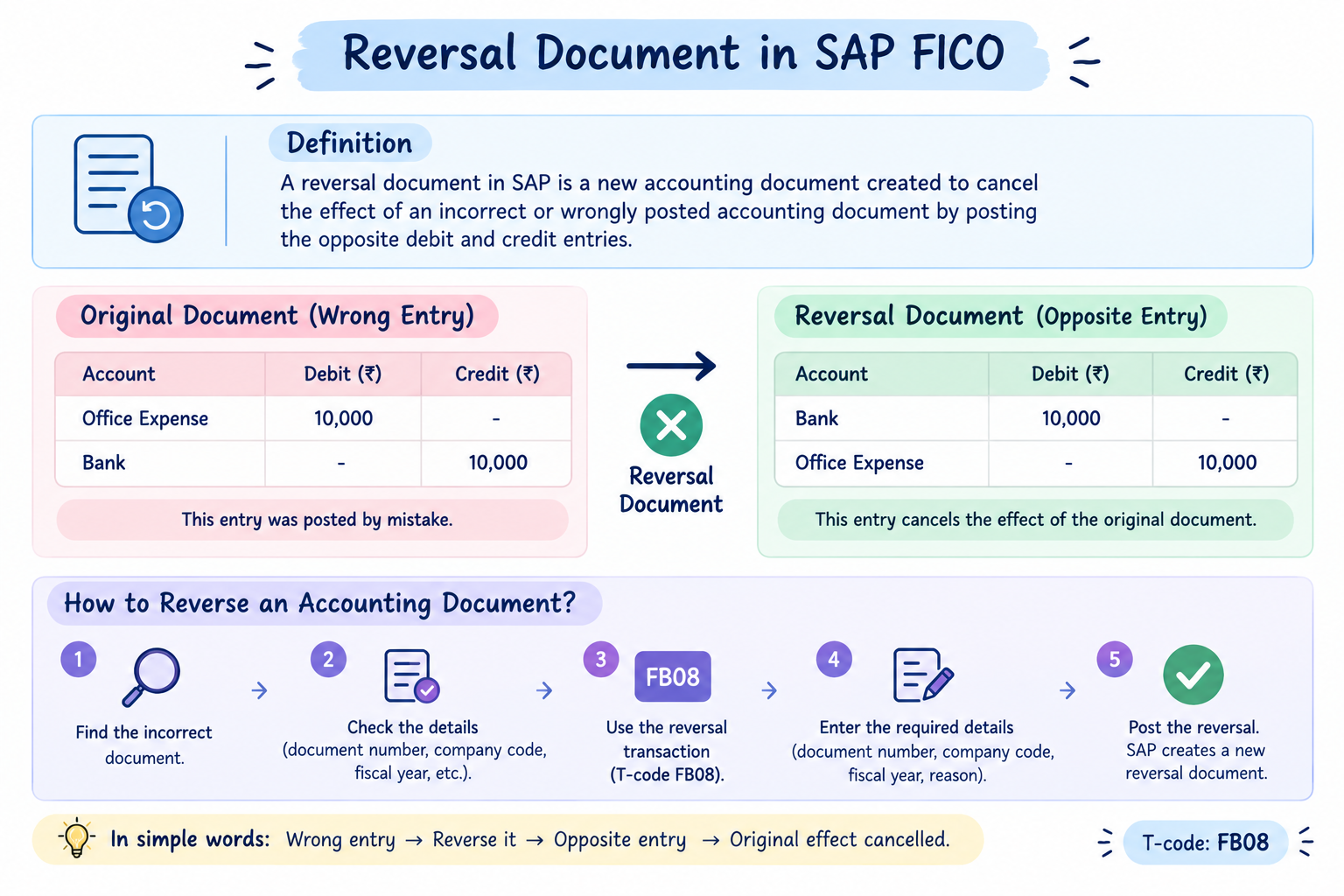
🔁 How to Reverse an Accounting Document in SAP?
👉 The general process is
- Identify the incorrect document — Find the accounting document that needs to be reversed.
- Check the document — Verify the document number, company code, fiscal year, and other details.
- Use the reversal transaction — For a standard FI document, T-code FB08 is commonly used.
- Enter the required details — Enter the document number, company code, fiscal year, and reversal reason.
- Post the reversal — After posting, SAP creates a new reversal document.
💻 Common T-Code
FB08 – Reverse Document
Easy Example
💡 In simple words
A reversal document is SAP's way of correcting an incorrect posted transaction without deleting the original accounting record.
Can a Reversal Document Be Reversed?
Yes — in SAP, a reversal document can itself be reversed.
🔺 Example flow:
👉 Original Document → Reversal Document → Reversal of the Reversal Document
There's no fixed limit on how many times a document can be reversed, as long as it doesn't contain any cleared items.
If the document does contain a cleared item, you'll need to reset the clearing first using transaction code FBRA. This reopens the item.
Once that's done, you can proceed with the reversal.
What Is an Accrual Document in SAP FICO?
An Accrual Document in SAP FICO is used to record an expense (or income) in the month it belongs to, even if the money has not been paid or received yet.
🔺 Example: Office Electricity Bill
A company uses electricity worth ₹5,000 in October. The bill arrives in November, and the company pays it then.
🔁 How Does It Work?
Step 1: October (month-end). The company has used the electricity, but there is no invoice yet. The accountant posts an accrual document:
| Account | Debit | Credit |
|---|---|---|
| Electricity Expense | ₹5,000 | – |
| Accrued Liabilities | – | ₹5,000 |
The ₹5,000 expense now appears in October, where it belongs.
Step 2: November (reversal). SAP reverses the accrual entry, so the expense is not counted twice:
| Account | Debit | Credit |
|---|---|---|
| Accrued Liabilities | ₹5,000 | – |
| Electricity Expense | – | ₹5,000 |
Step 3: November (actual invoice). The vendor invoice is posted:
| Account | Debit | Credit |
|---|---|---|
| Electricity Expense | ₹5,000 | – |
| Vendor (Electricity Board) | – | ₹5,000 |
Step 4: Payment. The company pays the vendor, and the vendor account is cleared.
Result: October shows ₹5,000 of expense. November shows ₹0 net expense for this bill, because the reversal and the actual invoice cancel each other out.
🤔 Why Is It Used?
- To record expenses in the correct month
- To show liabilities even before the invoice or payment arrives
- To keep financial statements accurate at month-end
👉 Can It Be Used for Income Too?
Yes. If you have earned income but not yet billed the customer, you can post an accrual for that income in the same way.
Quick Summary
An accrual document records an expense in the month it belongs to, even when payment happens later. In SAP, it is usually posted at month-end and reversed automatically in the next period, once the actual invoice is posted.
FAQ (Frequently Asked Questions)
What is accrual reversal in SAP?
Think of it as erasing the temporary entry. In October, we recorded ₹5,000 as a placeholder because the bill had not arrived. In November, when the real bill comes, SAP cancels the placeholder first. Otherwise, the ₹5,000 would be counted twice.
Is an accrual the same as a provision?
No, they are different.
Accrual: The expense has already happened, but the bill has not come yet. Example: We used electricity in October, but the bill comes in November. We know it will be about ₹5,000.
Provision: The expense has not happened yet, but it may happen in the future, and we are not sure how much. Example: A customer may file a court case against the company. We don't know if we will lose or how much we will pay, so we keep some money aside.
Easy way to remember
Accrual = "It happened. The bill is coming."
Provision = "It may happen. Let's keep money ready."
What is Document Status in SAP?
Document Status tells you the current state of an SAP document — for example, whether it is completed, parked, held, or posted. Think of writing an email: you can save it as a draft, send it, or recall it. SAP documents work in a similar way.
The Main Statuses
- 👉 Posted → The accounting document is officially recorded in SAP.
- 👉 Parked → Document is saved but not yet posted.
- 👉 Held → Document is temporarily saved for later completion.
- 👉 Reversed → The original transaction has been cancelled by a reversal document.
🔺 Real-life Example
✅ Imagine you enter a supplier invoice.
- You get stuck and need to leave, so you hold it.
- Later you finish it, but your manager must approve it, so you park it.
- After approval, you post it.
- If you find a mistake later, you reverse it instead of deleting it.
Thing to remember
SAP almost never deletes accounting records. It changes their status instead, so you can always see what happened and when.
Normal vs Statistical Documents in SAP
✅ What is a Normal Accounting Document?
A Normal Accounting Document is a record created in SAP when an actual financial transaction takes place. It is also called an actual posting.
👉 In simple words: It records what actually happened with the company's money.
👩🏫 Simple Example: School
A school pays ₹40,000 salary to a teacher, Neha.
The school has actually paid ₹40,000, so SAP records it as a Normal Accounting Document.
🔺 It shows that:
- Salary Expense (Debit) = ₹40,000
- Bank (Credit) = ₹40,000
This is a real financial transaction because the school's accounts are affected.
✅ What is a Statistical Document?
A Statistical Document is used to record additional information that helps a business track, monitor, or analyze its activities. It is also called a statistical posting.
👉 In simple words: It gives us extra information about a business activity without creating another actual financial transaction.
👩🏫 Simple Example: School
Let's continue with the same example.
Neha's ₹40,000 salary is already recorded in the Normal Accounting Document.
Now the school wants to know: "How much are we spending on the Science Exhibition?"
Neha helped with the exhibition for a few days. So the school makes a note: ₹5,000 of Neha's salary is related to the Science Exhibition.
This note is the Statistical Document. It helps the school see the cost of the exhibition.
The important point is that the school did not pay another ₹5,000. The real money was already paid in the normal transaction. The statistical entry is only a note for tracking.
In SAP, this tracking label is usually an internal order or a similar object.
What is Document Splitting in SAP?
Document Splitting is a feature in SAP that automatically splits accounting information within a document according to defined characteristics, such as Profit Center or Segment, so that financial information can be tracked and reported separately.
The main purpose is to make sure that each Profit Center or Segment gets its correct share of the transaction and remains balanced.
🔺 Imagine Apple has two business divisions
- iPhone Division → Profit Center 1000
- Mac Division → Profit Center 2000
But management wants to know:
"How much of this ₹10,000 belongs to the iPhone division and how much belongs to the Mac division?"
Easy Example
👉 With Document Splitting
SAP automatically splits that ₹10,000 according to the Profit Centres. So SAP understands:
- ₹6,000 → iPhone Division
- ₹4,000 → Mac Division
This allows Apple to analyze and report each division's finances separately, and keeps everything balanced.
👉 Why it is useful?
It is useful because it helps a company see how much money each department or Profit Center earns and spends separately. It also helps the company prepare accurate, balanced financial reports for each department or Segment.
Why Are Some Fields Restricted From Changes After Posting in SAP FICO?
In SAP FICO, once an accounting document is posted, some fields cannot be changed directly. This is because SAP needs to keep the company's financial records accurate and reliable. Less important fields, like Text or Assignment, can usually still be edited using transaction FB02, but key fields like amount, G/L account, and posting date are restricted.
Let's understand with a simple example.
💡 Example: Office Rent Payment
Suppose a company pays ₹20,000 for office rent and records it in SAP. The accountant posts the document with these details:
- Amount: ₹20,000
- G/L Account: Office Rent Expense
- Posting Date: 1 October 2026
After posting, the accountant realizes that the amount should have been ₹25,000.
Can the accountant simply change ₹20,000 to ₹25,000?
Generally, no. SAP restricts direct changes to important accounting details because changing them could affect financial records and reports.
Instead, the accountant may need to reverse the incorrect document using transaction FB08 and post a new document with the correct amount. The reversal cancels both sides of the original entry (the debit to Office Rent Expense and the credit to Bank). The original document can be viewed anytime using transaction FB03.
Why Does SAP Restrict These Changes?
- To maintain accuracy - SAP makes sure that the company's financial records show the correct information.
Example: If the office rent is ₹20,000, the amount should be recorded correctly.
- To prevent mistakes
SAP does not allow users to freely change important accounting details after posting because this could create incorrect records.
- To maintain an audit trail
An audit trail is like a history of financial transactions. It helps a company understand what was recorded originally and how any mistakes were corrected.
- To keep financial reports correct
Posted documents affect company expenses, account balances, and financial reports. Uncontrolled changes could make these reports incorrect, because SAP updates account balances at the moment of posting.
🧠 Remember
SAP restricts changes to important fields after posting to protect financial records, prevent errors, and maintain a clear audit trail. If an important detail is incorrect, the accountant generally reverses the document and posts a corrected one.
Quick reference:
- FB02 – Change a document (limited fields only)
- FB08 – Reverse a document
- FB03 – Display a document
What Is a Document Change Rule in SAP FICO?
Definition
A Document Change Rule defines which fields of an accounting document can still be changed after the document has been posted.
SAP does not let users freely edit posted documents. Some fields stay open for correction, while key accounting data is locked.
💡 Example: School Fees
Rahul's school posts an accounting document for his ₹10,000 school fees.
- Changing the text: The school wants to update the line item text to "Annual Fee 2026-27." Text is usually changeable, so it can be edited directly in FB02.
- Changing the amount: The school wants to change ₹10,000 to ₹12,000. SAP does not allow this directly. The school must reverse the document (FB08) and post a new one.
👉 What Can Usually Be Changed?
Depending on the document status and configuration:
- Text or description
- Assignment number
- Payment-related fields such as payment terms, baseline date, and payment block, generally only on open (uncleared) items
👉 What Generally Cannot Be Changed?
- Posted amount
- Account
- Posting date
👉 Where Is This Configured?
It is set up by an SAP consultant in the configuration area (SPRO), under Document Change Rules. There, they decide which fields can be changed after posting. They can set this for header fields, line item fields, and other document fields. The rules can also be different for customers, vendors, and G/L accounts, and for open items versus cleared items.
🧠 Remember
A Document Change Rule tells us what we can and cannot change in an accounting document after posting. The changes allowed depend on the field and the SAP system settings.
Which Fields Can Be Changed After an Accounting Document Is Posted in SAP FICO?
In SAP FICO, after an accounting document is posted, some fields can be changed, but others cannot be changed directly. It depends on the SAP system settings.
Let's understand this with a simple office example.
💡 Example: Office Rent Payment
Suppose a company pays ₹20,000 for October office rent and records the transaction in SAP. After posting the document, the accountant realizes that some information needs to be corrected.
👉 Fields That May Be Changed After Posting (using T-code FB02)
- Text
Text is a short description of a transaction. For example, the accountant entered "Office Expense" but wants to change it to "October Office Rent."
- Assignment
Assignment helps identify or group a transaction using additional information. For example, the accountant enters RENT-OCT-2026 to identify the October rent transaction.
- Reference
Reference is a number or code that helps identify a related document or record. For example, the accountant enters the rent receipt number RENT-105 to find the supporting record easily.
Important: Text, assignment, and reference fields may be changed only when SAP settings permit it. The exact fields available for changes depend on the document and system configuration.
👉 Which Fields Generally Cannot Be Changed Directly?
- Posting Date: The date on which the transaction affects the accounts.
- Amount: The amount recorded in the accounting document.
- G/L Account: The account used to record the expense.
- Company Code: The company in which the transaction was recorded.
These fields affect account balances and the audit trail, so SAP does not allow them to be changed directly. If these important accounting details are incorrect, the accountant generally needs to reverse the document (using T-code FB08) and post a corrected one.
🧠 Remember
In SAP FICO, fields such as Text, Assignment, and Reference may be changed after posting, depending on the system settings. Important accounting details, such as the amount and G/L account, generally cannot be changed directly after posting.
🤔 Ask a Question About This Guide
Stuck on a topic? Ask in your own words and get a simple, beginner-friendly answer based on this guide.
AI-powered answers can make mistakes — check the topic in the guide.